

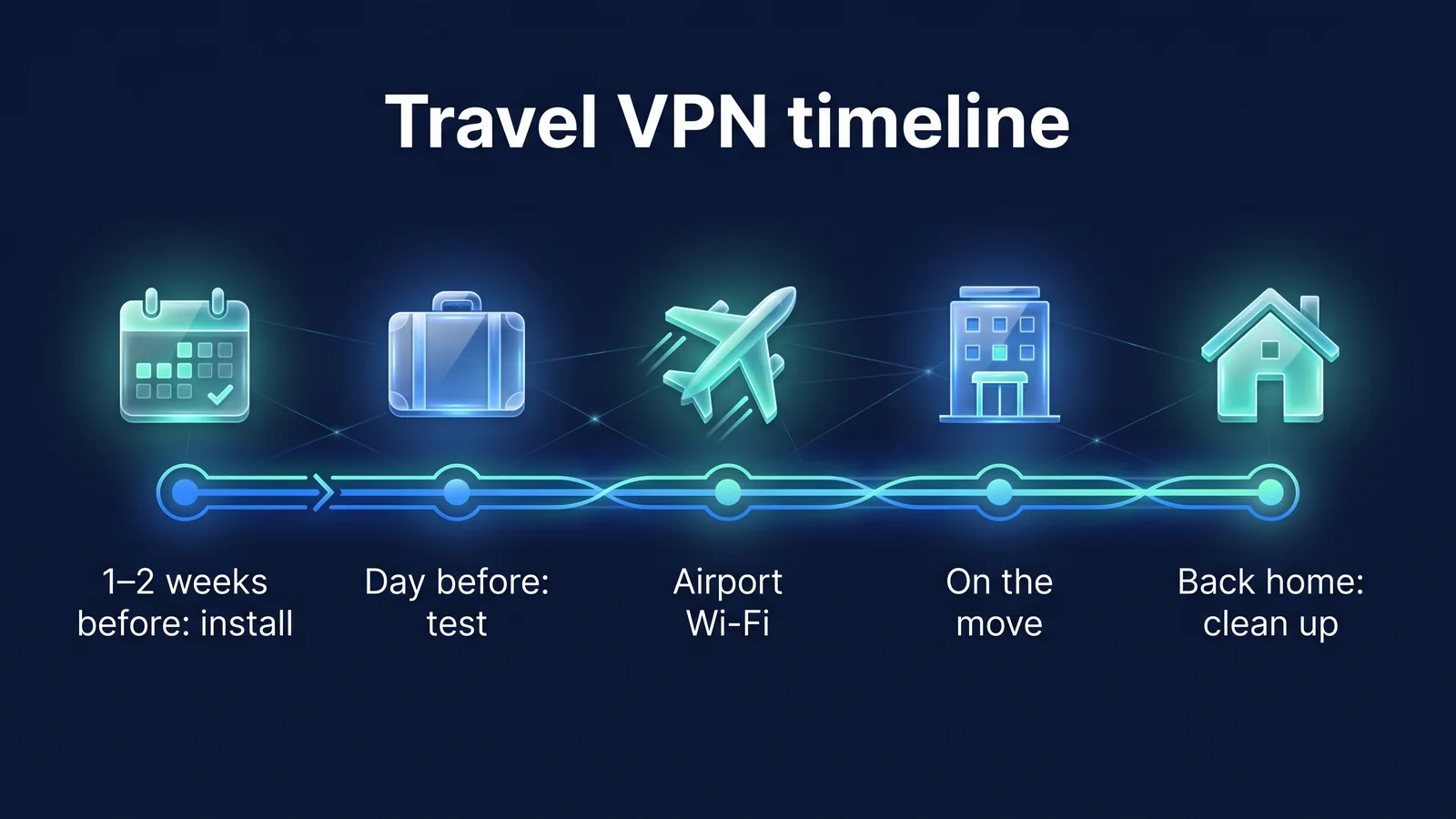
- 1-2 weeks ago
- Install, log in, test connect. Check the regulations of the country you are visiting
- eve
- Update, subscription/payment method, 2-step authentication check
- airplane
- Verify your official Wi-Fi name, get past the login screen, then VPN
- local
- Check the status when the network changes during accommodation or movement
- After returning home
- Delete saved Wi-Fi, revert bank settings
There are five steps to properly using a VPN when traveling abroad. Complete the installation and test connection before leaving the country, go through the Wi-Fi login screen first at the airport and hotel, then turn on the VPN, check the connection status every time the network changes, and revert any settings changed during the trip after returning home. This article writes down what to do in each step in order, and organizes the locations to check on iPhone, Android, and Chrome for each step in a table. At the end, we have collected solutions for each symptom when connection is not possible. Why you need a VPN abroad 7 reasons why you need a VPN when abroadYou can check it first here.
Step 1. 1-2 weeks before departure: How do I install and test connect?
The goal for this step is to install StageVPN on each device you plan to take with you a week or two before leaving the country, and try connecting to it once on your home Wi-Fi. Local data may be expensive or slow, and it may be difficult to receive an account verification text. If you complete the installation, login, and permission screens that appear when connecting for the first time in Korea, all you have to do is press the connect button locally.
- Install the StageVPN app on your smartphone and StageVPN for Chrome on your laptop's Chrome browser. Install from official sources, such as the App Store for iPhone and Google Play for Android. We do not install installation files or configuration profiles from unknown sources.
- Log in and check your access location. The default location is South Korea. You can choose a country in the app or use automatic selection.
- Press the Connect button. iOS will ask you to add a VPN configuration, and Android will ask you to allow the VPN connection request. Verify that the requested app is StageVPN and allow it.
- After checking the connected sign, try opening a website. When it opens, the test connection is complete. Also check that the permission screen does not appear again when you disconnect and reconnect.
- Check the VPN regulations of the country you are visiting. Ministry of Foreign Affairs Safe Travel OverseasPlease check with the local embassy information. Some countries restrict the use of non-government approved VPNs (as of September 2026).
- Choose a rate plan that suits your travel period. It costs 8,000 won per month and 50,000 won per year, and both are auto-renewable subscriptions. Even if you cancel, you can use it until the end of the payment period.
In a test connection, try connecting automatically to Korea once. When using domestic services while traveling, choose Korea, and when the only goal is to protect public Wi-Fi, choose a nearby location. If you check in Korea whether both methods are working properly, you will not be at a loss while on the spot. If your family or group travels together, they will each take the same test on their own devices.
| item | iPhone·iPad | Android | Chrome Browser |
|---|---|---|---|
| Products used | StageVPN App | StageVPN App | StageVPN for Chrome |
| Installation path | App Store | Official information path such as Google Play | Official distribution path guided by StageVPN |
| When connecting for the first time | Allow adding VPN configuration, enter device password | Allow VPN connection requests | Log in from the toolbar icon |
| protection range | All devices (including IPv4·IPv6, DNS) | All devices (including IPv4·IPv6, DNS) | Communication in Chrome tabs only |
| Subscription Management | App Store | Google Play (when Play Store is installed), other web payments | web payment |
Secure all apps, browsers, and DNS lookups with WireGuard tunnels
- messenger
- mail app
- Map and translation app
- banking app
- photo backup
Only Chrome tab communication is protected by an HTTPS proxy. Excluding mail programs, messengers, and other browsers
tip If you use an email program or messenger on your laptop, the Chrome extension alone will not protect your communications. Do sensitive tasks within Chrome or with the StageVPN app on your smartphone. The difference between the two methods is Browser VPN vs App VPNThe first settings screen for each device is iPhone/iPad Informationand Android instructionsIt is in
Step 2. The day before departure: What updates and accounts are checked?
The day before departure, check anything that may be difficult to change during the trip. These include operating system updates, subscription status, payment method, 2-step verification method, and banking settings. Local update capacity is a burden, and account recovery is blocked if you do not receive a verification text.
- Update your operating system and StageVPN app to the latest version. Save data by installing on your home Wi-Fi.
- Check your subscription status where you paid. Make sure your payment method expires during your trip.
- Check the two-step authentication method for your StageVPN account and your email/messenger account. Have an authenticator app or recovery code handy as you may not be able to receive texts overseas.
- Make sure the Foreign IP Blocking service is turned on in the security menu of your banking app. If cancellation is necessary, it will be processed according to the bank's instructions. Some banks require a branch visit.
- Make sure screen lock and find device are turned on on the device you're taking. How to set it up 10 smartphone privacy settingsIt is in
Preparation also includes reducing the number of times you connect to public Wi-Fi. Save offline maps from the Maps app, flight and hotel reservation confirmations, and travel insurance policies on your device so you'll be less likely to have to rush to find Wi-Fi at airports and hotels. The banking app checks that the certificate and authentication app are working properly by logging in once before leaving the country.
| item | iPhone·iPad | Android | Chrome Browser |
|---|---|---|---|
| Operating system/app updates | Settings > General > Software Update, Updates from App Store | System updates in Settings (location varies by manufacturer), app updates on Google Play | Update in Chrome menu > Help > About Chrome |
| Where to check your subscription | Manage your App Store subscription | Manage your Google Play subscriptions (when Play is installed) | Web payment management screen |
| When payment fails | Renew your App Store payment method | Renew your Google Play payment method | Web payment is available for 3 days after payment failure, within which time you can change the payment method. |
| Check VPN configuration | Settings > General > VPN & device management | Settings > Network & Internet > VPN | Status of extension icon |
tip If you log out, you will need to log in again, so please check how you signed up (social login, email, phone number) and the authentication method for that account. You may need roaming or dual SIM to receive texts from your local number while abroad.
Step 3. Airport Wi-Fi: What order do I connect to?
For airport Wi-Fi, check the official network name, connect to Wi-Fi, complete the login screen, connect to VPN, and check status. The login screen is called a captive portal. A captive portal refers to a Wi-Fi login screen that opens the Internet only after agreeing to the terms and conditions or entering information. If the VPN is turned on first, your device may not be able to get to the login screen and it may seem like you have no internet at all.
- Check the airport signage or staff for the official Wi-Fi name. If you see several similar names, select only the ones you see.
- Connect to Wi-Fi. When the login screen appears automatically, complete the process, including agreeing to the terms and conditions.
- If you don't see the login screen, make sure your VPN is turned off and try opening any website in your browser. It often takes you to the login page.
- After confirming that the internet is open, connect from the StageVPN app.
- Check the Connected sign and then use Mail, Messenger, or Banking apps. Data sent or received before the connection is complete is not protected by the VPN.
- name resolutionCheck the official Wi-Fi name with signage and staff.
- Wi-Fi connectionAvoid other networks with similar names
- login screenComplete procedures such as agreeing to terms and conditions
- VPN connectionConnect from the StageVPN app
- Check statusUse after showing connected
| item | iPhone·iPad | Android | Chrome Browser |
|---|---|---|---|
| How the login screen appears | Automatically displays immediately after Wi-Fi connection | Show network login notification in notification area | Opening the website in a tab takes you to the login page |
| Check VPN connection status | Connected indicator in app, VPN indicator in status bar and control center | Connected indicator in app, key icon in notification area | Connection status of toolbar icons |
| First action when connection is not possible | Turn off the VPN and reconnect after completing the login screen | Turn off the VPN and reconnect after completing the login screen | Turn off the extension and reconnect after passing the login page |
| Fake Login Screen Suspicious Signs | If you are asked to install a card number, password, app, configuration profile, or certificate, the connection will be disconnected. | ||
CISA's travel guide for the U.S. also covers Bluetooth and charging habits, along with public Wi-Fi. Turn off Bluetooth when not in use, and connect your charger directly to a power outlet if possible. If you take out your laptop, set the network profile in Windows to Public and turn off file sharing. These settings operate independently of the VPN, so you must check them separately even if you turn on the VPN.
tip It is safer to postpone financial transactions at the airport. The U.S. Cybersecurity and Infrastructure Security Agency (CISA) recommends using your phone's mobile data for financial transactions instead of public Wi-Fi. If you must, only use the official app while connected to a VPN. Public Wi-Fi rules are: 9 rules for public Wi-FiThis is covered in detail.
Step 4. Local accommodation and on the go: what to look for?
Locally, logging into your property's Wi-Fi, choosing a server location, and checking the status when the network changes are key. Hotel Wi-Fi often requires you to log in with your room number and last name, and may require you to log in again after a few hours or a day.
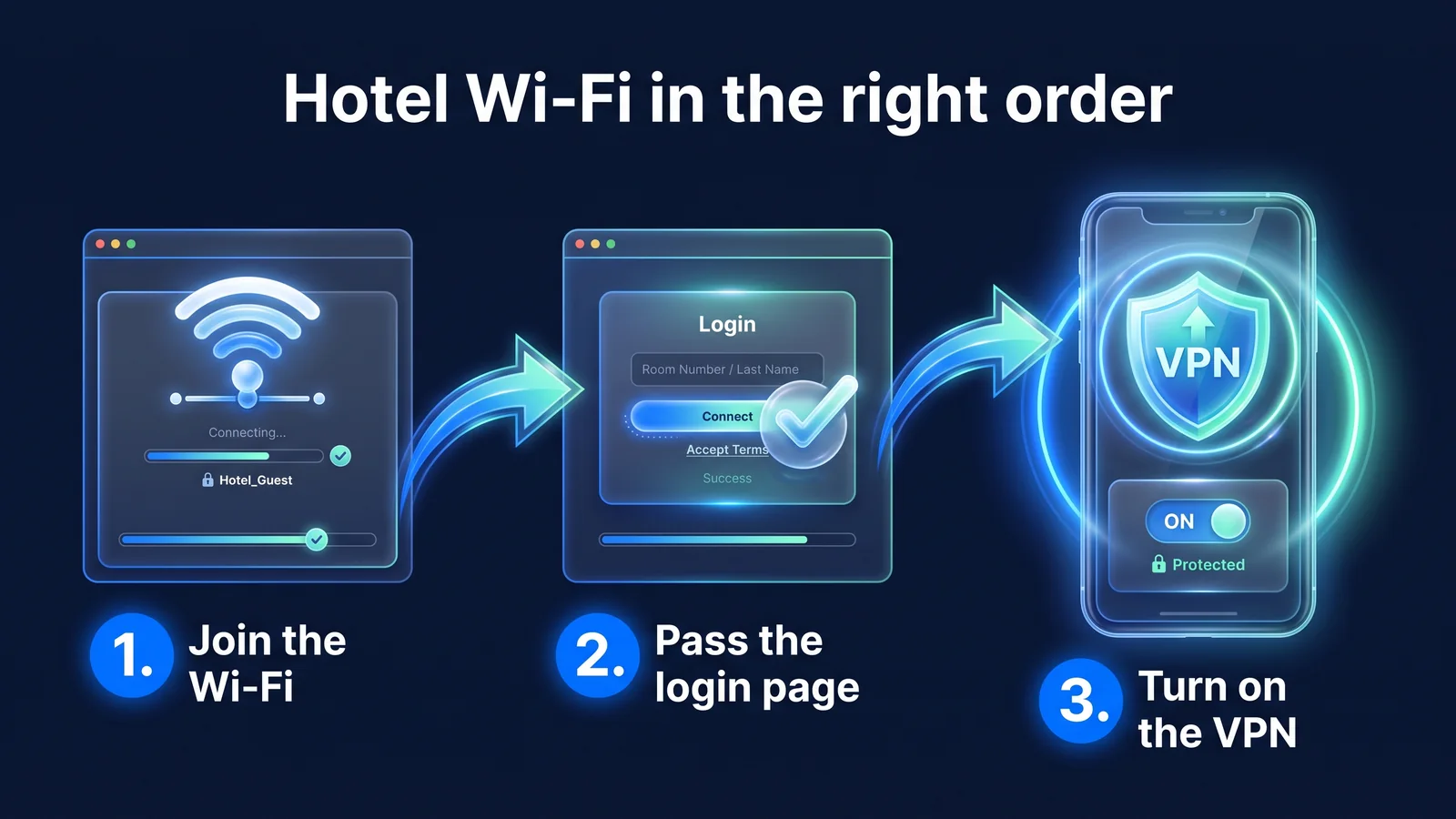
- When checking in, confirm your hotel's official Wi-Fi name and login method. Entering your room number and last name is common.
- Follow the same steps as at the airport, go through the login screen first and then turn on the VPN. If your internet suddenly disconnects, your login session may have expired. Turn off the VPN for a moment and check the login screen first.
- Choose a server location that suits your purpose. If your goal is to protect public Wi-Fi, select a nearby location or select automatically, or select Korea if you want to use domestic services as usual. Available locations may change and are therefore based on the listing shown in the app.
- After changing from Wi-Fi to mobile data or losing signal inside a subway or building, check the app's connection status. WireGuard is designed to recognize the device and continue communication with the same public key even if the device's IP changes, but it is safe to check the status after the signal has been lost for a long time.
- If the local map, transportation, or delivery app does not work with the VPN turned on, turn it off for a while before using it. Avoid sensitive tasks such as logging in and making payments while on the phone.
| item | iPhone·iPad | Android | Chrome Browser |
|---|---|---|---|
| Change server location | Select the country in the app and reconnect | Select the country in the app and reconnect | Select a location in the extension pop-up and reconnect |
| After switching networks | Check the app's connection status | Check the app's connection status. If the screen frequently disconnects after turning off, check the battery optimization settings. | Check expansion status when your laptop's Wi-Fi changes |
| save data | Settings > Cellular > Cellular Data Options > Low Data Mode | Data saving mode in Settings (location varies by manufacturer) | Not applicable (depending on laptop line) |
| battery saver | Settings > Battery > Low Power Mode | Settings > Battery > Power saving mode | Not applicable |
VPNs use slightly more data due to added encryption and headers. WireGuard adds 60 bytes for IPv4 and 80 bytes for IPv6 to each packet. Based on large packets of around 1,400 bytes, the increase increases by about 4 to 6%, and in communications with many small packets, the ratio can increase even further. If your roaming or eSIM data limit is low, set photo backup to only be done over Wi-Fi. If your VPN frequently disconnects after turning off the screen on Android, battery optimization may be limiting StageVPN. Things often get better if you turn off usage restrictions in the battery settings in app information.
A VPN also makes sense when using mobile data. For roaming, you can borrow a base station from a local telecommunication company, and for travel eSIM, there are products where the Internet connection point is located in a third country other than your travel destination. A VPN obscures the content and destination of communications in a route where it is difficult to know which service provider it goes through. To access domestic services using a Korean IP, select a Korean server. Even in this case, the policies of each service take precedence and use is not guaranteed.
tip Business travelers who need to access company systems connect using the company's dedicated IP (StageVPN Business). How to adjust to company IP whitelist Enterprise Fixed IP VPN GuideIt is in Since the policies of each service take precedence regardless of the server location, use of domestic banking apps is not guaranteed even if connected to a Korean server.
Step 5. After returning home: what to bring back and what to erase?
After returning home, restore any settings you changed during your trip, erase any traces of your destination network, and check your account login history. If you leave your saved hotel/airport Wi-Fi on, it may automatically connect to a fake access point with the same name in the future.
- Delete hotel, airport, and cafe Wi-Fi connected during travel from the list of saved networks.
- I reapply for the bank's overseas IP blocking service that I canceled before leaving the country.
- We summarize travel eSIM profiles and roaming additional services.
- Check login history and security alerts for key accounts. If you have a device you don't know, log out and change the password.
- If your subscription is only meant to be used during your trip, turn off auto-renewal at the place you paid. Even if you cancel, you can use it until the end of the payment period. Subscriptions paid for in the app market must be canceled at the relevant store.
| item | iPhone·iPad | Android | Chrome Browser |
|---|---|---|---|
| Delete saved Wi-Fi | Settings > Wi-Fi > Info button next to the network > Clear this network | Delete from the list of saved networks in Settings (location varies by manufacturer) | Delete it from the Wi-Fi settings of your laptop's operating system. |
| Unsubscribe | Manage your App Store subscription | Manage Google Play subscriptions (when Play is installed), and manage other web payments | Web payment management screen |
| Check login history | List of devices in your Apple account | Security Checkup for your Google Account | Security Checkup for your Google Account |
This is also an opportunity to change plans if you plan to keep your subscription. Changing from monthly to annual will take effect immediately and prorated for the remaining period. Changing from yearly to monthly will take effect at the end of the current period. If you change payment platforms, updates to the previous platform will stop.
to revert
- Re-apply for bank overseas IP blocking service
- Card overseas payment settings
- Data saving/low power mode
erase
- Saved hotel/airport/cafe Wi-Fi
- Travel eSIM Profile
- Roaming additional service
Check
- Account login history and security notifications
- Whether subscription automatically renews
- Permissions for apps installed while traveling
tip Refund criteria Payment/refund policyFollow. Cancellation method by payment method: Rate plan informationI organized it in . Security habits before and after travel Travel Security InformationYou can also see it here.
What should I check first when I can't connect?
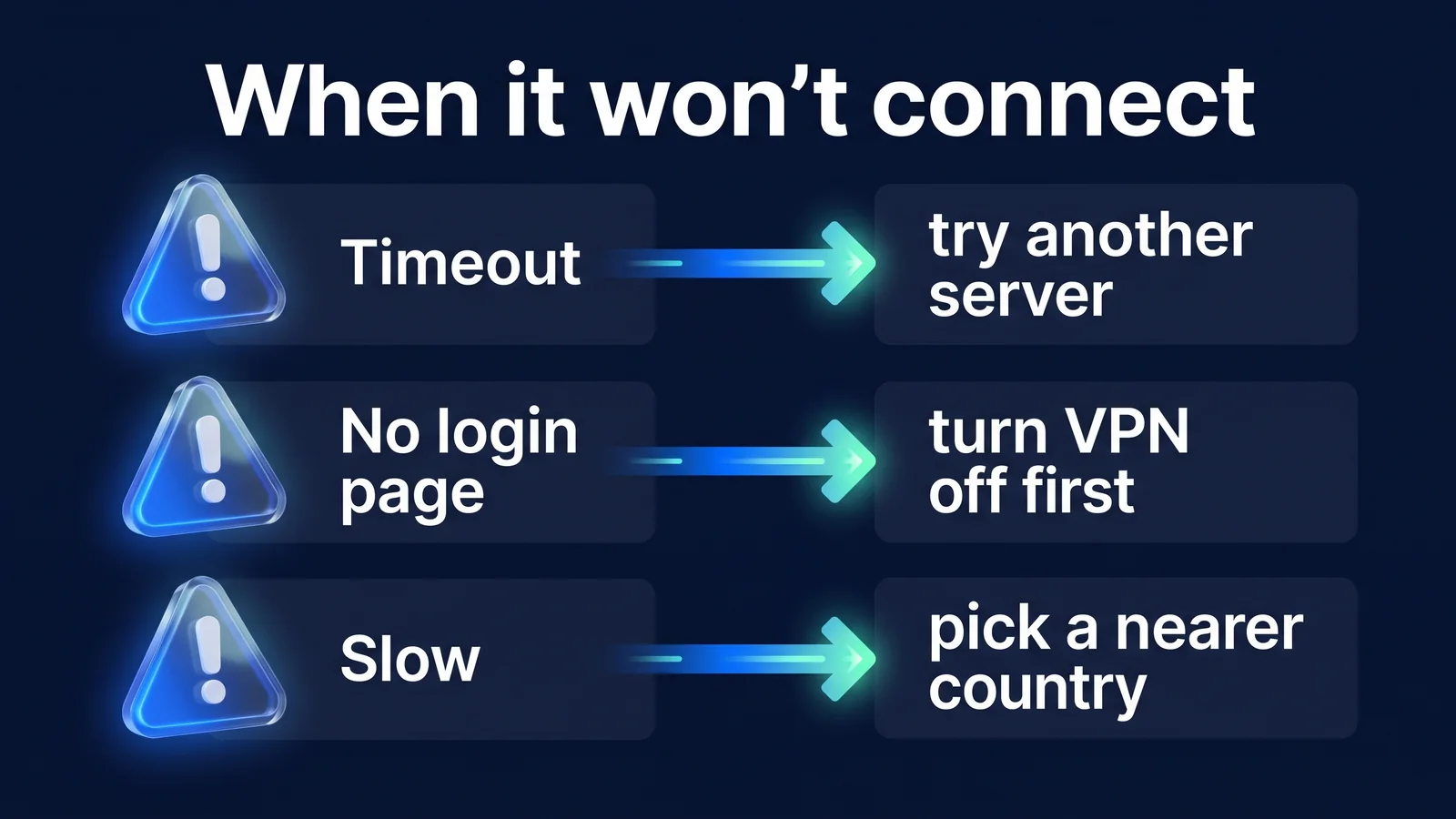
Most VPN problems while traveling arise from the Wi-Fi login screen or local network conditions rather than the VPN itself. First, check if you can access the Internet with the VPN turned off. The three cases shown in the picture above are the most common, and the table below summarizes other cases along with their causes.
| symptoms | cause | solve |
|---|---|---|
| Wi-Fi does not work when VPN is turned on | Not completing the login screen (captive portal) | Turn off the VPN, complete the login screen, and reconnect |
| Connection does not proceed (timeout) | Network limits VPN communication or signal is weak | Choose a different server location, switch to mobile data |
| The hotel disconnected after a few hours. | Wi-Fi login session expires | Turn off the VPN briefly and check the login screen again |
| Stutters when screen is turned off (Android) | Battery optimization/sleep mode limits apps | Turn off StageVPN's usage restrictions in battery settings in app information |
| slow speed | Far from the server or local line congestion | Compare with nearby locations, try changing time zones |
| Bank app login blocked | Foreign IP blocking settings, VPN access restrictions | Contact your bank's customer service center to inquire about using it overseas. Access is not guaranteed with a VPN |
| Subscription says expired | Payment method expired, renewal payment failed | Change payment method where payment was made |
| No connection at all on a specific network | VPN blocking policy for hotel, corporate, and school networks | Switch to another network. StageVPN does not guarantee to bypass blocks |
If your symptoms are not in the table, narrow them down in the order below.
- Turn off the VPN and check if you have internet access. If it doesn't work, it's not a VPN issue, but a Wi-Fi login or network issue.
- Turn on your VPN and try switching to a different server location. If only one location doesn't work, it's a problem with the server or path.
- Try switching from Wi-Fi to mobile data. If it only works on mobile data, the Wi-Fi is restricting VPN communication.
- Close the app completely and relaunch it. If that doesn't work, restart your device.
If StageVPN for Chrome won't connect, first check to see if another proxy or VPN extension is controlling Chrome's proxy settings. If two extensions compete for the same settings, neither may work properly. StageVPN for Chrome adjusts WebRTC policy during a connection, which may not take effect if another extension is controlling this setting. The extension connects private IP and localhost addresses directly without proxy. If this doesn't work on your laptop, you can also move the work to the StageVPN app on your smartphone.
caution In cases where VPNs are restricted by national laws, network policies and responses differ. Follow local laws and embassy guidance, and don't try to circumvent regulations with a VPN. The standards for use are Service Use PolicyIt is in
If it still doesn't work Customer SupportPlease contact us. Please let us know the device model, operating system and app version, network type (hotel Wi-Fi, eSIM, etc.), time of occurrence, and error message to speed up verification. Please do not send passwords, private keys, or one-time authentication codes.
Frequently Asked Questions
Should I always leave my VPN on when I travel?
We recommend leaving it on at all times while connected to public Wi-Fi. When using mobile data, you can consider data limit and battery and turn it on when doing sensitive tasks such as mail, messenger, or finance. Only briefly turn off local maps or delivery apps if they do not work with the VPN turned on, and avoid logging in or making payments while it is turned on.
When I turn on VPN on hotel Wi-Fi, I don't have internet access. Why is that so?
Most likely because you haven't completed the login screen (captive portal). Turn off the VPN, complete the login screen in your browser, and then reconnect. If you can't log in after logging in, try choosing a different server location or switching to mobile data.
If I only want to use it during my travel period, is it better to use it monthly or annually?
If your trip lasts 1-2 months, the monthly fee (8,000 won) is less burdensome. Monthly subscriptions are automatically renewed every month, and can be used until the end of the paid period even if cancelled. If you leave the country several times a year or stay for a long period of time, annual rates (50,000 won, approximately 48% discount compared to 12 months per month) are advantageous.
reference material
- safe overseas travel — National/regional safety information and consular call center (+82-2-3210-0404) information (Ministry of Foreign Affairs)
- WireGuard — Description of roaming design that continues connection even if IP changes (WireGuard project)
- RFC 8952: Captive Portal Architecture — How captive portals are structured and work (IETF)
- Use Low Data Mode on iPhone and iPad — Cellular/Wi-Fi low data mode setting path (Apple support)
- Connect to a virtual private network (VPN) on Android — Where to set up VPN on Android (Android Help Center)
- Holiday Traveling with Personal Internet-Enabled Devices — Public Wi-Fi and device security rules while traveling (US CISA)