

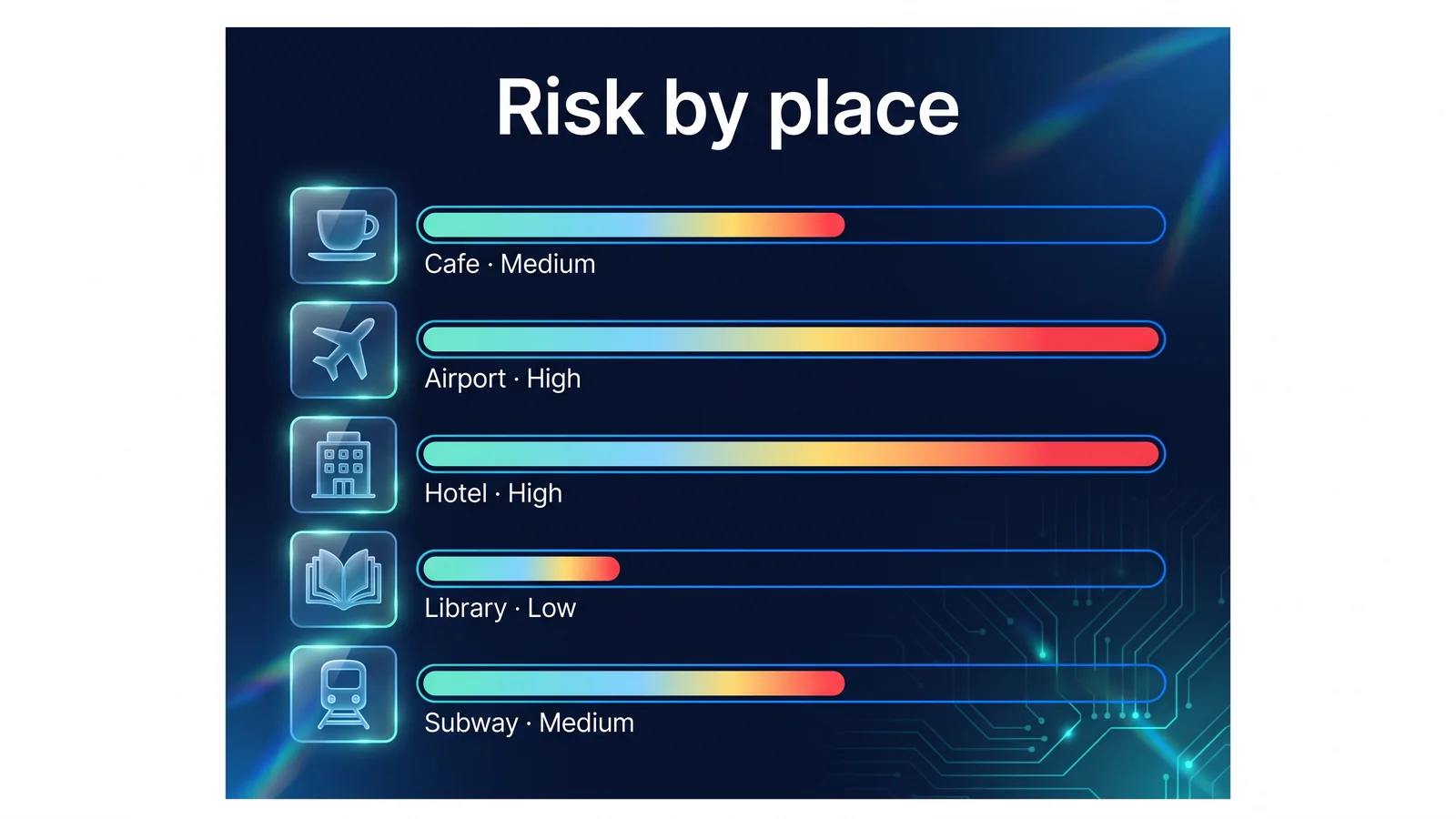
Before connecting to a cafe's Wi-Fi, have you ever checked to see if the network really belongs to that cafe? If you see two networks with the same name, which one would you choose? The reason public Wi-Fi is dangerous is because the operator cannot be identified and you cannot know who is connected to the same network. This article summarizes the 9 rules to follow when using public Wi-Fi using number cards. For each rule, I wrote down why it is needed and how to do it. First, let’s look at the risk level by location.
The risk level is a relative value based on the number of users, length of stay, login method, and whether the operator can be confirmed. Airports and hotels with a lot of traffic can easily create fake access points with the same name as the official Wi-Fi. Libraries and public institutions tend to have a clear operating entity. The rules are the same no matter where you are. Even in low-risk areas, keep the nine things below.
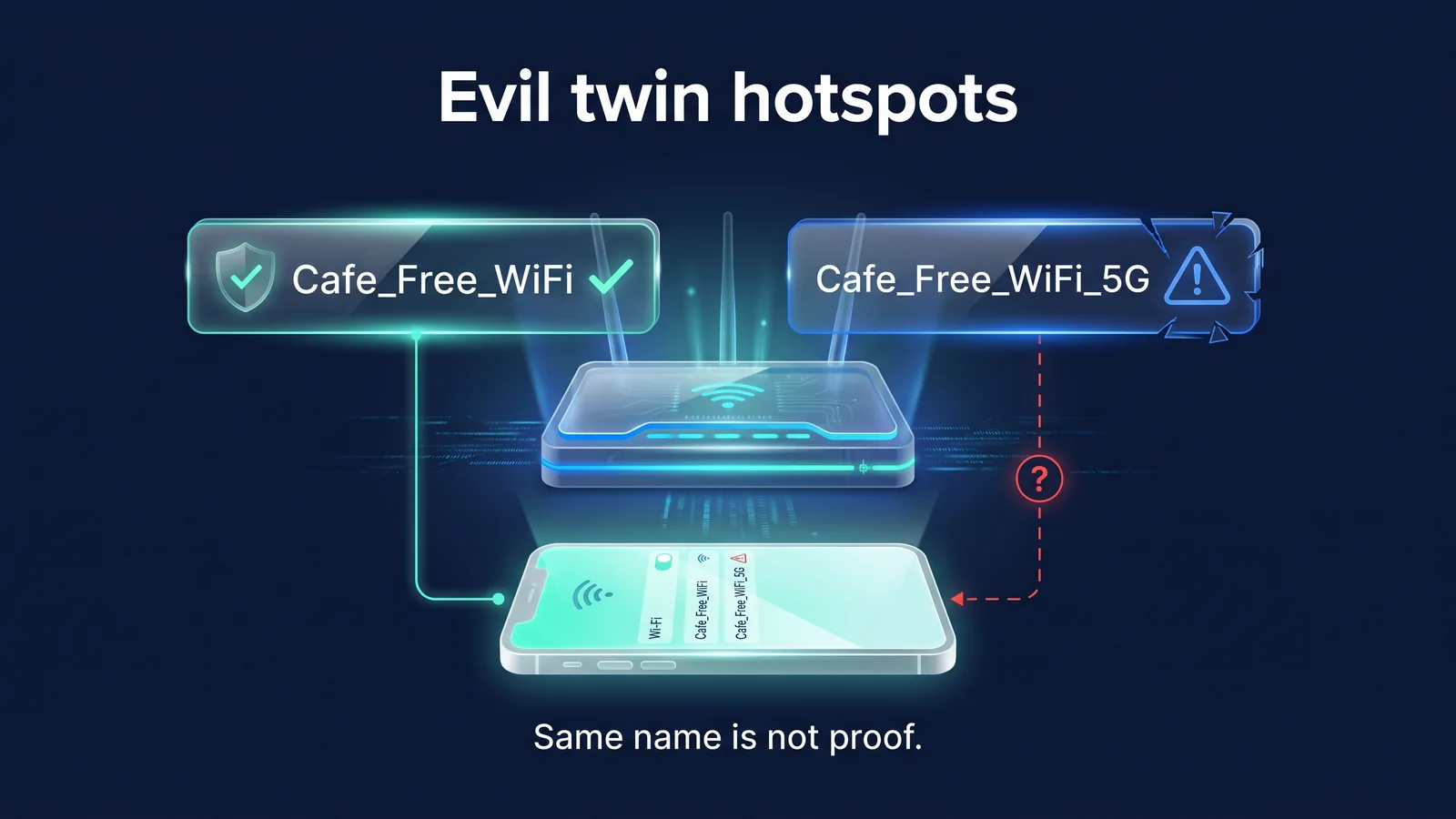
Why is public Wi-Fi dangerous?
There are three reasons why public Wi-Fi is dangerous: You can't tell who's running it, there are strangers on the same network, and it's hard to distinguish between a legitimate login screen and a fake one. The fake connection point pictured above illustrates the first risk. An evil twin is a fake wireless access point created with the same or similar name as the official Wi-Fi. Smartphones often connect automatically when they find a previously connected name, and if two names are the same, the one with the stronger signal may be selected. An attacker can create such a network with just a laptop or portable router.
However, there is no need to exaggerate the risks. As the Federal Trade Commission (FTC) explains, most websites today are encrypted with HTTPS. The number of cases where page content is displayed as is on public Wi-Fi has decreased significantly. The remaining risks are listed in the table below.
Even with HTTPS, the network can see which site you are accessing. This is because most DNS lookups that turn site names into addresses and server name representations in TLS connections pass unencrypted. Even if users or operators of the same network cannot see the page content, they can know which bank or mail service you accessed. A VPN puts this information inside a tunnel. Fake login screens are a different kind of risk. If you enter your card number or password on a page that mimics a normal captive portal, that information will be passed on to the attacker, regardless of encryption.
| threat | how do i wake up | What you may be exposed to | VPN effect | Related rules |
|---|---|---|---|---|
| Fake Point of Connection (Evil Twin) | Directs you to a network with the same name as your official Wi-Fi | Connection destination, unencrypted communication | greatly reduced | 1, 2, 9 |
| Peeking at the same network | Other users of the same router observe the communication | DNS lookups, app communication with weak encryption | greatly reduced | 3, 4 |
| fake login screen | A page that mimics a captive portal | Card information, account password | no effect | 3, 8 |
| Ignore certificate warnings | Present a fake certificate in the middle | Login information, page content | some reduction | 4 |
| Direct exposure to device | File sharing, AirDrop, nearby device sharing | Receive shared folders, device names, unwanted files | no effect | 5, 7 |
| Phishing links/malicious files | Occurs regardless of public Wi-Fi | account, device | no effect | 7, 8 |
The 'VPN effectiveness' in the table has three levels: greatly reduced, slightly reduced, and no effect. A VPN encrypts communications between your device and the VPN server, so even if you pass through a fake point of presence, an attacker will only see encrypted communications going to the VPN server.
- my smartphoneStageVPN App
- encryption tunnel
- fake point of presenceContent/destination unconfirmed
- encryption tunnel
- VPN serverStageVPN
- HTTPS
- websiteMail/Shopping
- VPN encryption
- Site HTTPS
- Areas that may be exposed
However, if you entered your information into the fake login screen before turning on the VPN, the VPN will not be able to revert it. Fake networks can also block the VPN connection itself. So the nine rules start with name resolution, not VPNs.
Before connecting: Rules 1-2
The goal of pre-connection rules is to avoid getting stuck on the wrong network. Once a faulty connection is made, all subsequent communications pass through that network.
We only trust network names confirmed by our staff
why Fake points of presence have names that are either the same as their official names or differ by only one letter. The lock symbol only means that the password is locked, it does not mean that the network is real. A network where all guests use the same password is easy to imitate with the same name and password.
how Confirm the correct name on the notice or with a staff member. If you see two names that are the same or spelled slightly differently, we won't link them. Where names cannot be verified, mobile data is used.
Turn off Wi-Fi auto-connect
why Auto-connection is the most common cause of unintentional connection to an evil twin. If you see a network with the same name that you previously connected to, your smartphone will connect to it without asking.
how On your iPhone, turn off automatic connection by going to Settings > Wi-Fi and tapping the Info button next to your network. If you turn on 'Ask to join networks' in Settings > Wi-Fi, it will ask you before joining an unsaved network. Android turns off automatic connection in the settings for saved networks (the menu location varies by manufacturer). If your device has the option to automatically connect to open networks, turn that off as well. Turning on private Wi-Fi addresses on your iPhone makes it difficult to track the same device across multiple Wi-Fis by using different hardware addresses for each network. After iOS 18, you can choose between Off, Fixed, and Rotating. Android also allows you to decide whether to use random hardware addresses in the privacy section of your saved networks.
A lock in the Wi-Fi list means that the wireless section is encrypted, such as WPA2 or WPA3. Everyone who knows the password enters the same network, so even if there is a lock in a place where the password is revealed, such as a cafe, you are sharing it with unfamiliar users. Open networks without passwords are more risky because the wireless section itself is not encrypted. Either way, when you turn on the VPN, the wireless section and the router/Internet service provider section beyond that are also encrypted.
When connecting: Rules 3 to 5
When connecting, order is important. Turn on the login screen first, then the VPN. Turn off the sharing feature before connecting.
After getting past the login screen, turn on your VPN
why A captive portal is a Wi-Fi login screen that opens the Internet after agreeing to the terms and conditions, entering your room number, and entering your email address. The network blocks most communication before passing through the portal. If the VPN is turned on first, it looks like the Internet is not working at all because it cannot reach the VPN server or the login screen.
how Proceed in the following order: Connect to Wi-Fi, complete the login screen, connect to VPN, and confirm connected. If the login screen does not appear, briefly turn off the VPN and try opening a website in your browser. In places such as hotels that require you to log in again after a certain period of time, check the login screen first if the Internet is disconnected. Data sent or received before the connected indicator appears is not protected.
- Wi-Fi connectionConnect only to confirmed names
- login screenAgree to the terms and conditions, enter room number
- internet openGeneral communication allowed
- VPN connectionConnect from the StageVPN app
- Confirm connectedAfterwards, use email/messenger
A normal login screen usually only asks for agreement to terms and conditions or simple information. If it is free Wi-Fi but it asks for your card number, your usual password for your email or SNS account, asks you to install an app, configuration profile, or certificate, or the domain in the address bar is unrelated to the facility name, suspect that it may be a fake screen and disconnect.
Check the HTTPS and certificate warnings in the address bar.
why HTTPS encrypts communication between your browser and the site. A certificate warning is a sign that the encryption may have been intercepted. If a warning appears on a site that normally opens well, you may be suspicious of the network itself. However, HTTPS does not guarantee that the site is real.
how Log in and make payments only on sites where the address begins with https and the domain is spelled correctly. If a certificate warning appears, do not proceed and close the page. The StageVPN app encrypts communications across your device all the way to the VPN server, and HTTPS encrypts the site beyond that. The two are used together as they do not replace each other.
| Show address bar | meaning | react |
|---|---|---|
| https + exact domain | Communication to the site is encrypted | Login and payment possible. Check your domain spelling one more time |
| https + unfamiliar domain | Encrypted, but no guarantee the site is real | Possible phishing. No information entered |
| http (no lock) | Content is not encrypted | Do not enter information. Read only or use after connecting to VPN |
| Certificate warning screen | Intervening or site setup error | Close the page without proceeding. Network changes when repeated |
Some browsers change the lock icon in the address bar to a different appearance. Rather than looking at the icon's appearance, look at whether the address starts with https and the domain spelling. Connection status is checked in different places on each device. iPhone displays the VPN in the status bar or Control Center, Android displays a key in the notification area, and Chrome displays the status of the StageVPN for Chrome icon in the toolbar.
Turn off file sharing and nearby device sharing
why AirDrop, Quick Share, and file sharing reveal your device to nearby devices. These features operate independently of the VPN, so even if you turn on the VPN, you must turn it off separately. In public places, you may receive unwanted files or have shared folders exposed.
how Turn off AirDrop on your iPhone or leave it to contacts only. Quick Share on Android limits visibility to contacts. Setting your Windows laptop's network profile to public makes it less visible to other devices on the same network. macOS turns off file sharing under Sharing in System Settings.
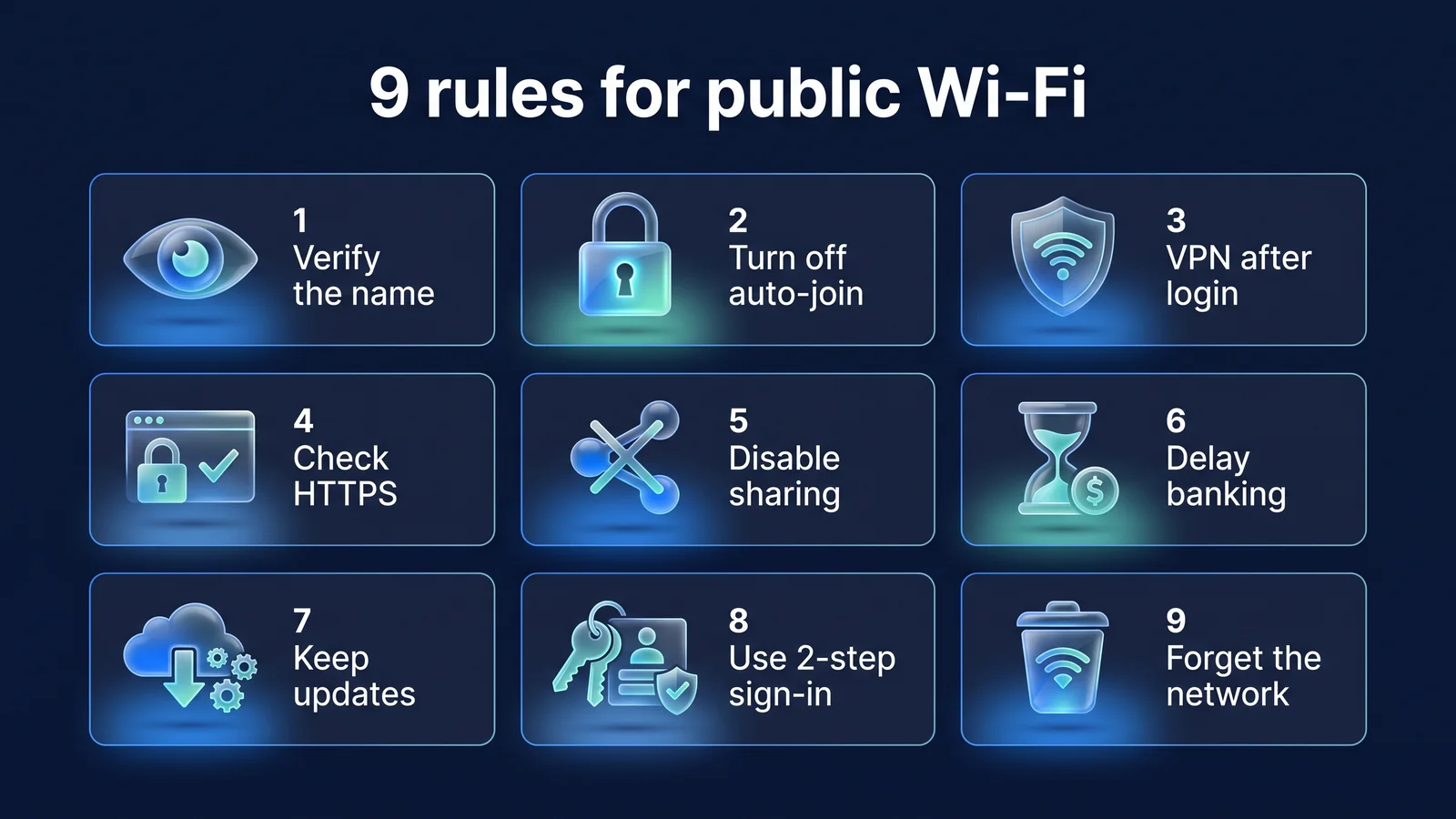
In use and daily life: Rules 6 to 8
Of the nine cells in the picture above, the first five are rules for the moment of connection, and the remaining four are habits. Rule 6 is to follow it while using public Wi-Fi, and rules 7 and 8 are things to do in advance on a daily basis.
Put off financial transactions and password changes
why It is difficult to undo a single mistake when transferring a large amount of money or changing the password for an important account. The U.S. Cybersecurity and Infrastructure Security Agency (CISA) recommends using your phone's mobile data for financial transactions instead of public Wi-Fi.
how If you're not in a hurry, mobile data or your home network will handle it. If you must use public Wi-Fi, make sure it is an official network, pass the login screen, and only use the official app while connected to the VPN. Do not log into any accounts on public PCs. This is because even if you use the browser's incognito window, you cannot block the keystroke recording program installed on the PC. If you must use it, log out of all accounts before you leave and change the passwords for those accounts on your device.
Keep your operating system and apps up to date
why Security updates fix vulnerabilities that can be used for network-based attacks. Other devices on the same network may exploit known vulnerabilities on your device.
how Turn on automatic updates and install any updates you have postponed through your home Wi-Fi before going out. On your iPhone, you can turn on automatic updates in Settings > General > Software Update. On public Wi-Fi, I suddenly get a screen telling me "an update is needed" and asking me to download the installation file, but it doesn't follow. Install apps only from official stores such as App Store and Google Play.
Turn on two-step verification for your main account
why Two-step authentication refers to a login method that requires a code or approval received from your device in addition to your password. Even if you enter your password on a fake login screen, 2-step verification makes it difficult for someone else to log in right away.
how Turn on your mail, messenger, finance, and cloud accounts first. An authentication app or device authorization method is better than text authentication. Keep the recovery code aside. How to set it up 10 smartphone privacy settingsIt is in
| method | merit | Things to note |
|---|---|---|
| Text (SMS) authentication number | No need for a separate app | You may not be able to receive text messages from domestic numbers overseas. May be exposed as lock screen preview |
| Authenticator app (one-time code) | Generate code without a network. Works overseas too | It must be moved before changing the device. Requires keeping backup codes |
| Device approval notification | Approve with one tap. Stronger against phishing than text messages | Approval requests that I did not request must be rejected |
| Security key (hardware) | Most resistant to phishing | Register a spare key or other method in case of loss |
After use: Rule 9
The after-use instructions are for your next visit. Even if you wrote it safely today, if the saved name remains, auto-connection will create problems next time.
Delete used networks from the list
why If the name is saved, you can automatically connect to a fake access point with the same name in the future. Hotel and airport names saved at travel destinations are common names, so you may encounter them in other places as well.
how When you leave, remove that network from your list of saved networks. On iPhone, go to Settings > Wi-Fi, press the info button next to the network, and then select ‘Forget this network.’ Android deletes them from the list of saved networks. It is also a good habit to turn off Wi-Fi and Bluetooth when not in use. Turning off Wi-Fi from Control Center on your iPhone may only temporarily disconnect, so to make sure it's turned off, turn it off in the Settings app or clear the network.
tip If you find it difficult to learn 9 things at once, try making rules 1, 3, and 9 (check your name, use VPN after logging in, delete when finished) into a habit. These three things prevent most of the risk of fake points of presence.
A VPN serves as one of the many layers of public Wi-Fi security. Choosing which network to connect to, making sure the site is real, and protecting your account and device are the responsibility of other layers.
- Select networkRules 1, 2, and 9: Check your name, turn off automatic connection, and delete after use.
- connection securityRule 3: Encrypt between your device and server with a VPN
- site securityRule 4: HTTPS, check for certificate warnings
- device securityRule 5·7: Turn off sharing, update
- Account/ActionRule 6·8: Hold financial transactions, two-factor authentication
The role and limitations of VPN What VPNs Prevent and Can't PreventWell, here's how to make sure your DNS lookups aren't leaking: DNS leak and WebRTC leakI organized it in .
What is the difference between the StageVPN app and StageVPN for Chrome on public Wi-Fi?
The scope of protection is different. The StageVPN app (iPhone/Android) sends device-wide IPv4/IPv6 traffic and DNS lookups to the WireGuard tunnel. StageVPN for Chrome only sends communications from the Chrome browser to the HTTPS proxy, and the connection between the browser and the proxy is encrypted with TLS. Adjust Chrome's WebRTC policy so that WebRTC does not bypass the proxy during the connection, and private IP and localhost addresses connect directly without going through the proxy. If you only use Chrome on your laptop at a cafe, the extension is sufficient, but if you also use an email program or messenger, your communications will not be protected.
StageVPN App · Smartphone
- Communication across all apps and browsers
- No tunnel until DNS lookup
- Both IPv4 and IPv6
- Default choice on public Wi-Fi
StageVPN for Chrome · Laptop
- Communication in Chrome tabs only
- TLS encryption between browser and proxy
- WebRTC policy adjustment during connection
- Excluding communication from other programs
StageVPN does not provide a feature that automatically blocks communication when the VPN connection is lost, so check the app status frequently during important tasks. For a detailed comparison of the two products, Browser VPN vs App VPN, the list of features is Function GuideIt is in
Why are the risks different in different places?
Risks vary from place to place because the number of users, length of stay, login method, and operating entity are different. Airports have the highest number of users and frequent arrivals and departures, making it easy to create fake access points. In a hotel, all guests use the same network for several days, and when the login session expires, the login screen appears again. In cafes, all customers use a common password written on the receipt or on the wall. Libraries and public institutions have a clear operating entity, but they are environments where public PCs are used. Subways and buses frequently change networks while traveling, making it easy to lose connectivity. Paid Wi-Fi on planes and trains also follows the same sequence as it is a public network that goes through a login screen. Make payment after making sure the payment screen is the official domain of the airline or railway company, and turn on the VPN once payment is complete.
Some domestic public Wi-Fis come with 'Public WiFi Secure' for secure access that encrypts the wireless section. The operating agency, the Korea Intelligence and Information Society Agency (NIA), advises that even if a secure connection is used, information may be leaked through other channels such as phishing and pharming. The open name and the secure connection name are often displayed side by side, and the operating organization advises that if you select the secure connection, the wireless section will be encrypted, but speeds may be slightly slower. It is safer to choose a name for your secure connection and use a combination of VPN and HTTPS verification. In places where the same public network is used for long periods of time, such as co-working spaces and share houses, it is recommended to turn on the VPN by default and turn off the sharing function. Connection order from overseas Overseas travel VPN usage guideWhy do you especially need a VPN abroad? 7 reasons why you need a VPN when abroadIt is in
Checklist before, during and after connection
The table below rearranges the nine rules into three columns: before, during, and after connection. You can avoid most mistakes by just checking the entries in each column. If you're traveling, Revert Bank Settings is added to the After Connect column.
| Before connection | Connecting | After connecting |
|---|---|---|
| Select only names confirmed by staff (Rule 1) | Connect to VPN after passing the login screen (Rule 3) | Delete from list of saved networks (Rule 9) |
| Turn off autoconnect (Rule 2) | Make sure your app appears connected (Rule 3) | Turn off Wi-Fi and Bluetooth |
| Complete operating system and app updates (Rule 7) | Check https and domain spelling in address bar (Rule 4) | Check account security notifications |
| Turn off AirDrop, Quick Share, and file sharing (Rule 5) | Close the page when a certificate warning appears (Rule 4) | Change your password if you don't know your login history |
| Turn on 2-Step Verification for your main account (Rule 8) | Financial transactions and password changes are made using mobile data (Rule 6) | Revert bank settings after travel |
Basic instructions Public Wi-Fi Informationand Security habits guideYou can also see it here.
reference material
- Are Public Wi-Fi Networks Safe? What You Need To Know — Beware of risks and fraudulent sites on public Wi-Fi after the spread of HTTPS (US Federal Trade Commission FTC)
- Holiday Traveling with Personal Internet-Enabled Devices — Recommended to use mobile data instead of open Wi-Fi and turn off Bluetooth (US CISA)
- RFC 8952: Captive Portal Architecture — Structure and operation of captive portals (IETF)
- Use private Wi-Fi addresses on Apple devices — Private Wi-Fi address setting path and off/fixed/rotating options (Apple support)
- Use public Wi-Fi safely — Information on Public WiFi Secure for secure access (Korea Intelligent Information Society Agency)
- KISA Protection Country — Public wireless LAN security guide and security notice (Korea Internet & Security Agency)