

If you see any of the symptoms below even after turning on the VPN, suspect a DNS leak or WebRTC leak. A leak is when information that is supposed to go through the VPN path leaves that path (also called an exfiltration).
- The VPN server IP is displayed on the IP verification page, but the DNS server of the telecommunication company or router is displayed in the DNS test.
- The IPv4 address has changed, but the IPv6 address is the same as before turning off the VPN.
- On the WebRTC test page, the public IP appears as it was before turning off the VPN.
- The original IP is only visible immediately after switching from Wi-Fi to mobile data or waking up from sleep mode.
- I turned on StageVPN for Chrome, but other browsers and PC programs connect using the original IP.
- Even with the VPN turned on, the site displays the language and content based on the original region (this may be due to account/cookie settings).
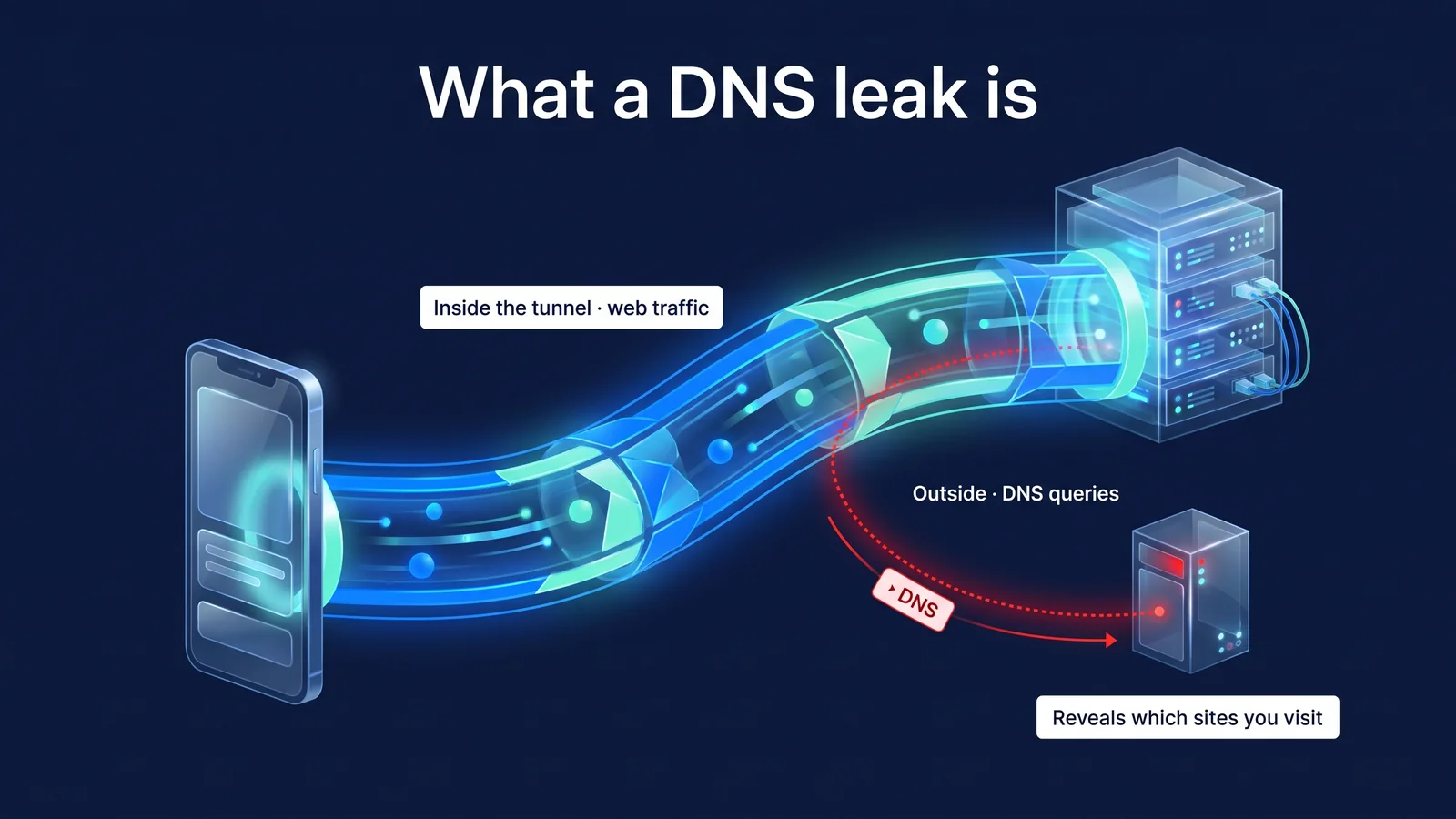
DNS leakage is a phenomenon in which web communication passes through the tunnel when the VPN is turned on, but only DNS queries go out of the tunnel, and the domain name is visible to the DNS server of the telecommunication company or Wi-Fi. WebRTC leakage is a phenomenon in which the browser's WebRTC sends a STUN request directly out of the VPN/proxy, allowing the web page to discover the actual public IP. Neither phenomenon means page content is leaking. However, it reveals ‘who is accessing where’. This article starts with symptoms and proceeds through six stages of diagnosis, resolution by cause, and re-examination.
Diagnosis: How to Check for a Leak in 6 Steps
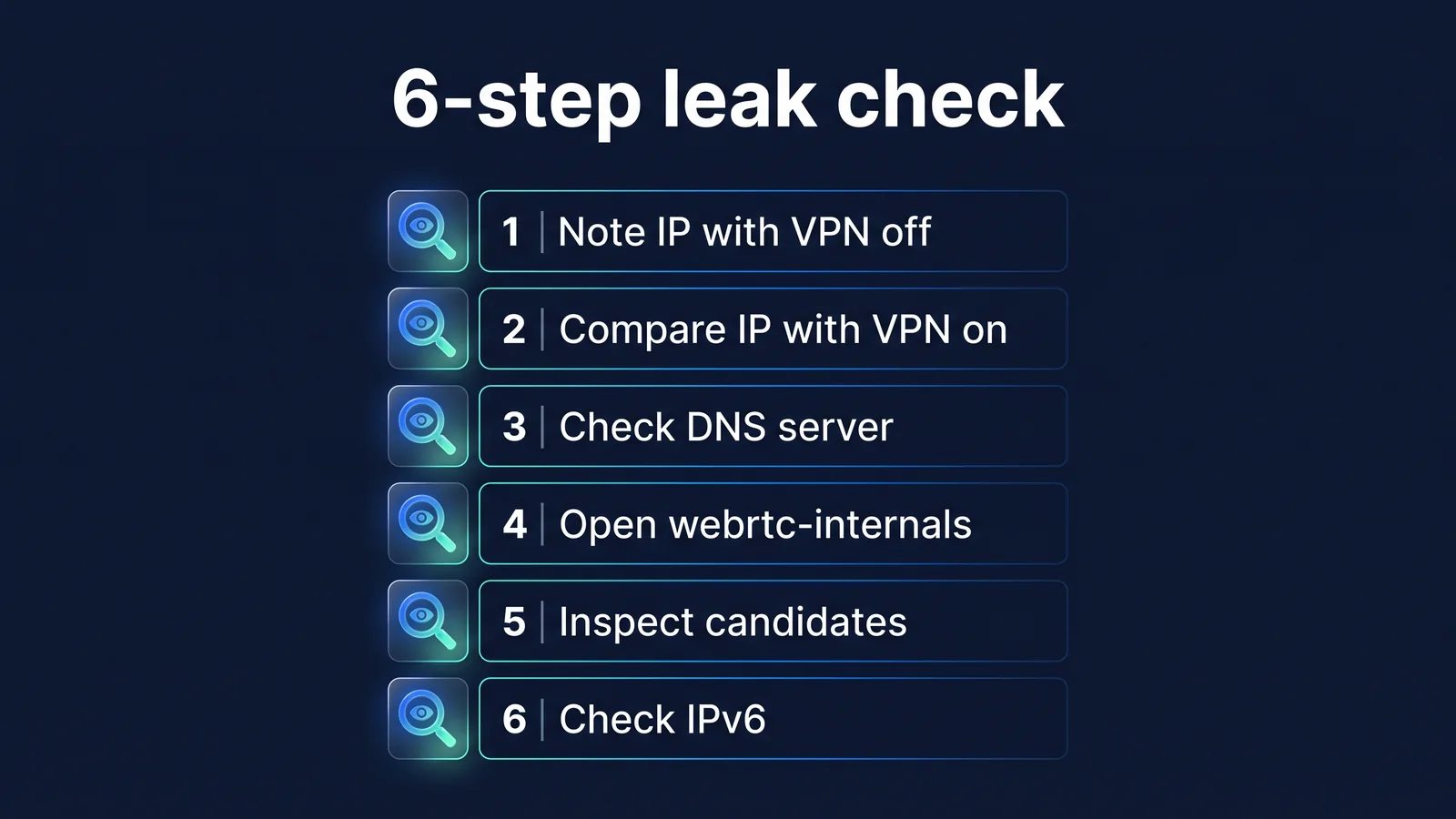
The principle of leak checking is to compare the values with the VPN turned off and with it turned on. Compare the IP shown on the site, the server that received the DNS query, and the WebRTC candidate address. If the original values are visible even after turning on the VPN, it is a leak. Testing is meaningful only on devices and browsers you actually use. Even if you don't have a specific test site, you can check most things just by using a browser. The IP verification page is a web page that displays the public IP address of the connected person on the screen. You can find it in a search engine as ‘Check IP’. Find the DNS leak test page and the WebRTC test page the same way. The principle is the same no matter which page you use, so you don't have to rely on a specific site.
- Turn off the VPN and record your IP. Open the IP verification page and write down the public IPv4 address and, if present, the IPv6 address. This value is the basis for all subsequent comparisons.
- Turn on your VPN and compare IPs. After checking the connection completion indicator on the StageVPN app or the green ON indicator on the StageVPN for Chrome icon, open the same page again. IPv4 should be replaced with your VPN server address.
- Check your DNS server. Open the DNS Leak Testing page. These pages query random subdomains and then show the DNS server that sent the query. If you can see your carrier or router's servers, it's a DNS leak.
- Open chrome://webrtc-internals. Entering this address in the Chrome address bar will display ongoing WebRTC connections and candidate addresses. The item will appear if you have the WebRTC test page or video call page open in another tab.
- Check the candidate IP. If the address of the srflx (server reflection) candidate is the same as the original public IP from step 1, then it is a WebRTC leak. If it is the VPN server IP or only the .local name and private IP are visible, the public IP is not exposed.
- Check IPv6. If you had an IPv6 address in step 1, turn on the VPN and see if that address has disappeared or changed. If this is the case, IPv6 is leaving the tunnel. Switch between Wi-Fi and mobile data, and repeat to see if the results are the same after restarting the browser.
| Observation results | meaning | Next cause |
|---|---|---|
| VPN server IP visible on site | Web communications go through the VPN path | Normal, next step |
| IPv4 has changed, but IPv6 is the original address | IPv6 leaves tunnel | Cause 2 |
| The DNS server is from the telecommunication company or router. | DNS leak | Causes 1, 3, 4, 5 |
| DNS server is a public DNS provider | DNS in your VPN configuration or a secure DNS that you specify yourself. | Don’t assume it’s a leak just based on the business name, check cause 4 |
| Original public IP is visible in WebRTC | WebRTC leak | Causes 6 and 7 |
| Only .local names or private IPs are visible in WebRTC | Public IP is not exposed | generally normal |
| Original IP only immediately after network switch | gap at the moment of transition | Cause 8 |
Results may vary by testing site. There are places that only view IPv4 and places that view IPv6, and the methods for finding DNS servers are also different. Compare in more than one place and by switching to multiple networks.
What does a DNS query reveal?
DNS queries contain domain names. Page content or entered values are not included. DNS is the Internet's address book system that converts domain names read by humans into IP addresses used by computers. Every time you type an address into your browser or an app contacts a server, your device first asks the DNS server 'what is the address of this name?' So, just by looking at the query history, you can tell a lot about when and which service you tried to access.
- my deviceApp/Browser
- Plain text DNS queries
- Public Wi-Ficafe router
- Plain text DNS queries
- Carrier DNSexisting server
- Areas that may be exposed
- my deviceApp/Browser
- DNS in tunnel
- Public Wi-Ficafe router
- DNS in tunnel
- VPN serverStageVPN
- Query by VPN server IP
- DNS serverSpecify in VPN configuration
- VPN encryption
Traditional DNS queries go to UDP port 53 unencrypted. To compensate for this, DoH (RFC 8484), which wraps queries in HTTPS, and DoT (RFC 7858), which wraps queries in TLS, were created. However, even if you use encrypted DNS, the server name (SNI) sent when connecting to a site via HTTPS may be visible on the network if the site and browser do not support ECH (Encrypted Client Hello).
| delivery method | Observer on the same Wi-Fi | Wi-Fi operator/communication company | DNS server receiving the query |
|---|---|---|---|
| Plain DNS (cleartext) | can see | can see | Visible, with my public IP |
| DoH/DoT (Encrypted DNS) | can't see | Not visible, DNS server addresses are visible | Visible, with my public IP |
| DNS inside a VPN tunnel | can't see | Not visible, only sees that it is communicating with the VPN server | Visible, with VPN server IP |
| DNS leak status | If it is plain text, you can see it. | can see | Visible, with my public IP |
Secure DNS (DoH) and VPN have different purposes. DoH only encrypts DNS queries; the site access itself and the IPs the site sees remain the same. A VPN encrypts the entire communication between your device or browser and the VPN server and changes the IP that sites see. Incognito mode doesn't stop leaks either. Incognito mode is a function that does not leave history or cookies on the device, and does not change DNS queries or WebRTC routes.
How does WebRTC determine an IP address?
WebRTC finds its own address in several ways to connect two devices through the shortest path and passes the results to the script on the web page. WebRTC is a web standard technology that allows you to make video calls, voice calls, and file transfers without plugins in your browser. The process of gathering addresses is called ICE (RFC 8445). Even pages that don't make video calls can start this process with a script.
- Create connection objectWeb page script creates RTCPeerConnection
- Gather local candidatesYour browser gathers the addresses of your device's network devices
- STUN queryAsk STUN server 'what my address looks like' with UDP
- Candidate deliveryA list of candidates including public addresses provided by the STUN server is delivered to the page.
| Candidate type | something | Information that may be revealed | Protection of recent browsers |
|---|---|---|---|
| host | Address of the machine's network device | Private IP (192.168.x, etc.) | Masked with a random .local name (mDNS), but can be seen on sites that have given camera and microphone permissions. |
| srflx (server reflection) | My public address as seen by the STUN server | Public IP, real IP if you bypass proxy | Can be restricted by WebRTC IP processing policy |
| relay | TURN Address of relay server | Relay server IP | If you use relay, the other party will see the server address instead of your IP. |
The problem is the STUN query in step 3. Browser proxies forward web requests, but WebRTC's UDP communications do not go through the proxy in browser default settings. So the address provided by the STUN server is not the proxy server, but my original public IP. Things are different with device-wide VPNs. Since all UDP communication, including STUN requests, goes to the tunnel, the address seen by the STUN server is also the VPN server's IP.
Browser proxy and default policy
- Web requests go through a proxy
- STUN requests go directly to UDP
- Page can see real public IP
Browser proxy and disable_non_proxied_udp
- Prevent UDP from going through proxy
- WebRTC only uses proxy paths
- Some calls have different connection methods or quality
Device-wide VPN
- STUN requests also go through the tunnel.
- Public address candidate is VPN server IP
- Disconnection and IPv6 handling require confirmation
Chrome has a 'WebRTC IP handling policy' that determines which address WebRTC will use, and extensions can change this value. Each value corresponds to four methods outlined in the IETF's WebRTC IP Address Handling Recommendation (RFC 8828).
| policy value | movement | exposure range |
|---|---|---|
| default | Collect candidates from all network devices | Widest (local addresses masked by mDNS) |
| default_public_and_private_interfaces | Only use devices on the default route, use both public and private addresses | Does not expose addresses of other devices |
| default_public_interface_only | Only use public addresses of the default route | Private addresses are not exposed |
| disable_non_proxied_udp | No UDP through proxy, use TCP through proxy if proxy does not support UDP | Do not expose addresses of routes outside the proxy |
Solution: How to check and fix by cause
Most leaks have one of eight causes: This is usually caused by overlapping settings. Start by checking the cause number pointed out in the diagnosis table, and each time you fix one, repeat step 6 in the picture above to see if the result has changed. If you change several settings at once, you won't know what worked.
Cause 1 · There is no DNS server in the VPN configuration or the device uses a different DNS.
check With the VPN turned on, the DNS test shows the Wi-Fi router or carrier's DNS server. You often have manual DNS in your device's Wi-Fi settings.
solve The StageVPN app includes a DNS server in the VPN configuration and sends queries into the tunnel. Revert Manual DNS to automatic in your device's network settings, then disconnect and reconnect to the VPN. If the problem is still the same, check causes 3 and 5.
Cause 2 IPv6 goes out of tunnel
check IPv4 has been changed to the VPN server address, but IPv6 remains the same as the value written down in step 1. If the VPN only tunnels IPv4, IPv6 queries and communications will go out the original route.
solve The StageVPN app is configured to send IPv6 communications to the tunnel as well (AllowedIPs 0.0.0.0/0, ::/0), so there is usually no need to turn it off. If IPv6 still appears as it should, first check to see if another VPN app or device settings are changing the route. Some test sites do not support IPv6, so compare at more than one site.
Cause 3 · The operating system queries the DNS of multiple network devices simultaneously.
check Especially during a VPN connection on a Windows PC, the DNS test shows both the VPN's DNS and your carrier's DNS. This is caused by a feature that asks all network devices simultaneously, such as Windows' Smart Multi-Homed Name Resolution.
solve Keep your operating system and VPN software up to date and repeat testing. This phenomenon is mainly reported with device-wide VPNs on PCs, and does not occur in the same way on the StageVPN app on smartphones and StageVPN for Chrome on Chrome due to different structures.
Cause 4 · Secure DNS (DoH) is specified separately in the browser or device
check The DNS test shows servers from public DNS providers. In this case, it may not be a leak but a setting you specified yourself. If you have a device-wide VPN, this query will also go through the tunnel, but it will be received by the specified provider rather than the DNS in your VPN configuration.
solve If this is the intended setting, you can leave it as is. If you want to use DNS for your VPN configuration, it will automatically change the secure DNS settings on your browser and device. It is important not to assume it is a leak just by looking at the business name.
Cause 5 · Other VPN, proxy, and security apps are also turned on
check Network features of other VPN apps, proxy extensions, ad filters or security programs are turned on at the same time. The route settings overwrite each other, causing some queries to go to the original route.
solve Turn on only one at a time. Turn off other apps and extensions, disconnect and reconnect StageVPN, and repeat step 6. Chrome's proxy settings can only control one extension at a time, so if another extension is using a proxy, StageVPN for Chrome won't connect and will tell you why.
Cause 6 · Only browser proxy is used, but communication outside the browser is expected
check I turned on StageVPN for Chrome, but other browsers, PC messengers, and mail programs connect using the original IP and original DNS. This is not a leak, this is the designed range. The extension only covers communication in Chrome.
solve If you need to protect programs outside of Chrome, use a VPN that applies to the entire device. On smartphones, the StageVPN app does just that. The difference in scope between the two methods is Browser VPN vs App VPNI organized it in .
Cause 7 WebRTC policy not applied
check I turned on StageVPN for Chrome and I can see the original public IP in the WebRTC test or in the srflx candidate in chrome://webrtc-internals. If another extension or company/organization's management policy controls WebRTC settings first, StageVPN for Chrome will not change the policy and will leave it as is.
solve Turn off any other extensions that control WebRTC settings and reconnect StageVPN for Chrome. If management policy is the cause, contact your administrator. To write in an incognito window, you must turn on 'Allow in incognito mode' in the extension management screen. When off, communications in incognito windows do not go through the proxy.
Cause 8 · The moment the VPN connection is lost
check The original IP is visible only immediately after switching networks or waking up from sleep mode, and after a while it is normal. During the disconnection, all queries and communications go out through the normal route.
solve Before doing any sensitive work, check whether the app's connection completion indicator or the extension icon is ON. WireGuard, used by the StageVPN app, does not re-establish a tunnel even when changing from Wi-Fi to LTE, but the protocol cannot compensate for temporary disconnections in the network itself. The ability to automatically block communications when the VPN is disconnected is not a feature provided by StageVPN. The principle is Explaining WireGuard PrinciplesIt is in
How do StageVPN apps and StageVPN for Chrome stop leaks?
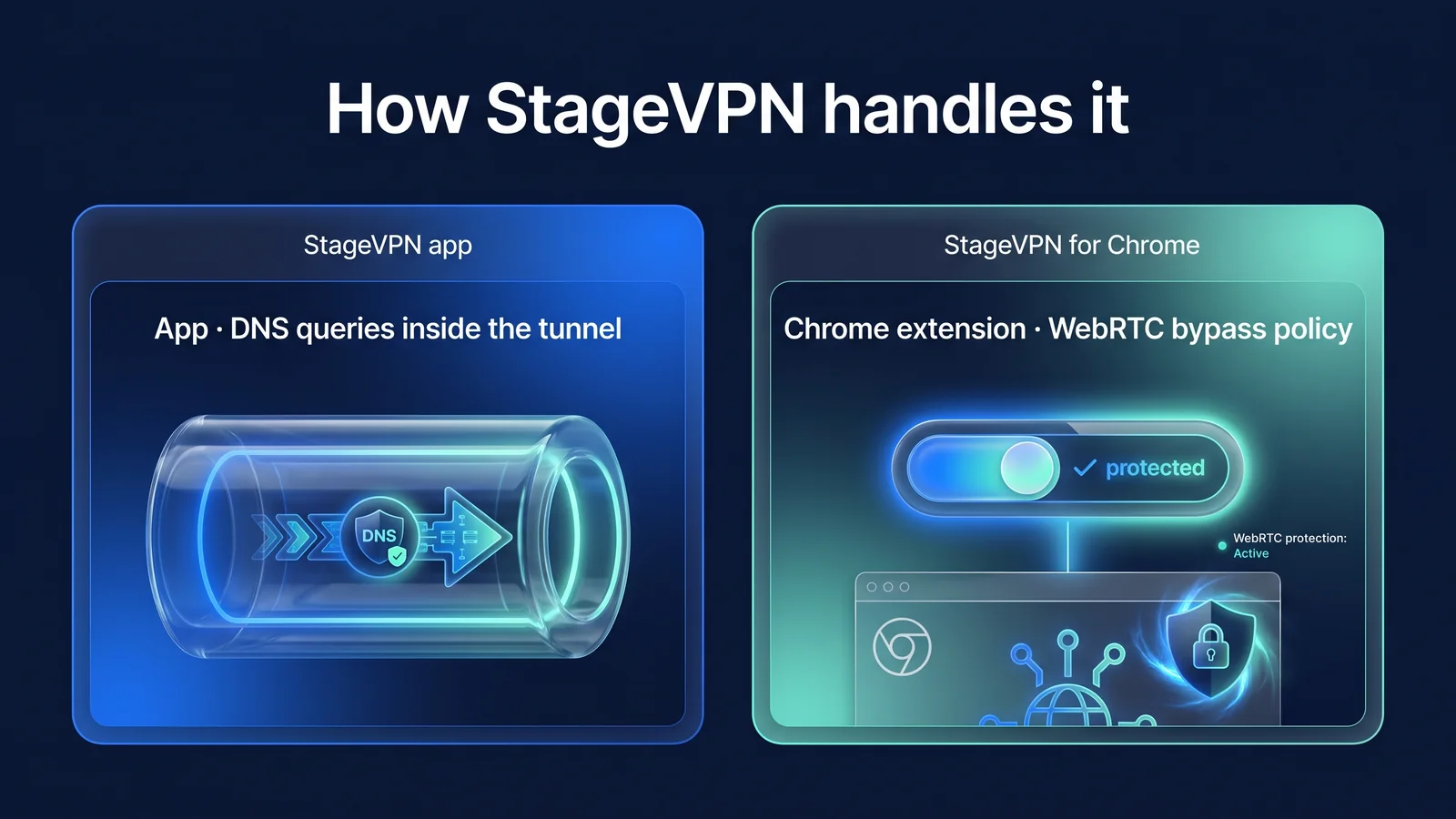
The StageVPN app reduces leakage by tunneling all communication, while StageVPN for Chrome proxies name lookups and adjusts WebRTC policies. Since the scope of protection is different, the way it is handled is also different.
| item | StageVPN app (iPhone·iPad·Android) | StageVPN for Chrome |
|---|---|---|
| protection range | All devices | Chrome Browser |
| Communications sent via VPN route | IPv4·IPv6 All (AllowedIPs 0.0.0.0/0, ::/0) | Web requests go through proxy (excluding private IP bands and localhost) |
| DNS queries | Forward within the tunnel to the DNS server specified in the VPN configuration. | Requests that go through a proxy are not looked up by Chrome, but by the proxy server. |
| WebRTC | All UDP communication goes through the tunnel. | disable_non_proxied_udp is applied during connection, and returns to the original setting when disconnected. |
| What you currently see on the network | The fact that there is encrypted communication with the VPN server and the amount of data | Name lookup of proxy server addresses, encrypted connections with the proxy, and communication from apps outside of Chrome |
| Cases that may not apply | While the VPN connection is lost, when another VPN app reroutes | Incognito window with Allow incognito mode turned off when another extension or management policy controls proxy/WebRTC settings |
| Access history (93 days) | Domains viewed are not recorded | The connected destination host name is recorded, but the path or search term is not recorded. |
StageVPN does not guide you through a separate DNS leak protection settings menu as a feature of its offerings. The above behavior is dependent on the app's default VPN configuration and the extension's connection method. The scope of provision is Features and Scope of OfferingYou can check it here.
No leaks mean that queries and communications go through the VPN path instead of the carrier. This does not mean that no records will be kept. StageVPN retains access records for 93 days in accordance with the Communications Secrets Protection Act and does not record communication content. The item is Access record storage noticeWell, the reason I'm revealing it is Why are we disclosing our access record retention policy?explained.
Re-check checklist: What do you re-check after making changes?
Each time you fix one cause, check the items below again from the beginning. If all passes, there is no leak. If any item fails, it returns to the corresponding cause card.
- After disconnecting and reconnecting the VPN, I checked whether the app showed connection completion or the expansion icon showed ON.
- On the IP verification page, you'll either see the VPN server address for both IPv4 and IPv6, or you won't see IPv6.
- The DNS test does not show the DNS server of the telecommunication company or router.
- The srflx candidate in chrome://webrtc-internals does not have the original public IP.
- Network features of other VPN apps, proxies/VPN extensions, and security programs are turned off.
- If you have set Manual DNS or Secure DNS for your device and browser, you have verified that this is the intended setting.
- Your operating system, browser, and StageVPN apps and extensions are up to date.
- Same result even after switching between Wi-Fi and mobile data and restarting the browser.
- If you need to protect programs outside of Chrome, you can use a device-wide VPN rather than an extension.
It is also a good idea to determine when re-inspection is necessary. That's after a major update to your operating system or browser, after installing a new extension or security app, or before doing any sensitive work on a network you're connecting to for the first time. If the settings are the same but the results have changed, one of these three things is usually the cause. Once you get the hang of it, the 6 stages of diagnosis can be completed in just a few minutes.
If the problem persists, organize the device model, operating system and app version, time of occurrence, and test results. customer supportPlease contact us. Please do not send your password or verification code. The device settings to be checked along with checking for leaks are: 10 smartphone privacy settingsWell, there are risks that cannot be solved with just a VPN. What VPNs Prevent and Can't PreventWell, your habits on public networks are Public Wi-Fi Safety RulesI organized it in .
reference material
- RFC 1034: Domain Names — Concepts and Facilities — DNS structure and the role of resolvers (IETF)
- RFC 8484: DNS Queries over HTTPS (DoH) — How to encrypt DNS queries over HTTPS (IETF)
- RFC 7858: DNS over TLS — How to encrypt DNS queries with TLS (IETF)
- RFC 8445: Interactive Connectivity Establishment (ICE) — WebRTC connection candidate types and collection procedures (IETF)
- RFC 8828: WebRTC IP Address Handling Requirements — Range of addresses that browsers expose to WebRTC (IETF)
- chrome.privacy API — Chrome WebRTC IP Handling Policy Values (Chrome for Developers)
- chrome.proxy API — Extension proxy settings, bypass list, and control priorities (Chrome for Developers)
- WebRTC API — RTCPeerConnection and the concept of ICE candidates (MDN Web Docs)