

IT person
Whitelist dedicated IPs, invite and organize members from the corporate console. The scope of responsibility includes steps 3 to 7 of the 7 steps of introduction and operating rules.
management
Confirm what will be stipulated in the contract, the scope of information that managers can view, and their obligations to inform members. Just read steps 1-2 and “What Management Will Check.”
member
Understand what information your company sees when you accept an invitation in the app and connect as a company. Just reading steps 6-7 and “What Members Will Do” is sufficient.
The introduction of a corporate fixed IP VPN involves seven steps: consultation, contract, dedicated IP allocation, whitelist registration, member invitation, app acceptance, and connection confirmation. This article organizes by role who does what at each stage of the StageVPN business and what rules are followed after introduction. Rates, number of seats, number of dedicated IPs, and countries of use are determined by corporate contract after consultation without a public price list (as of September 2026).
What is a corporate static IP VPN?
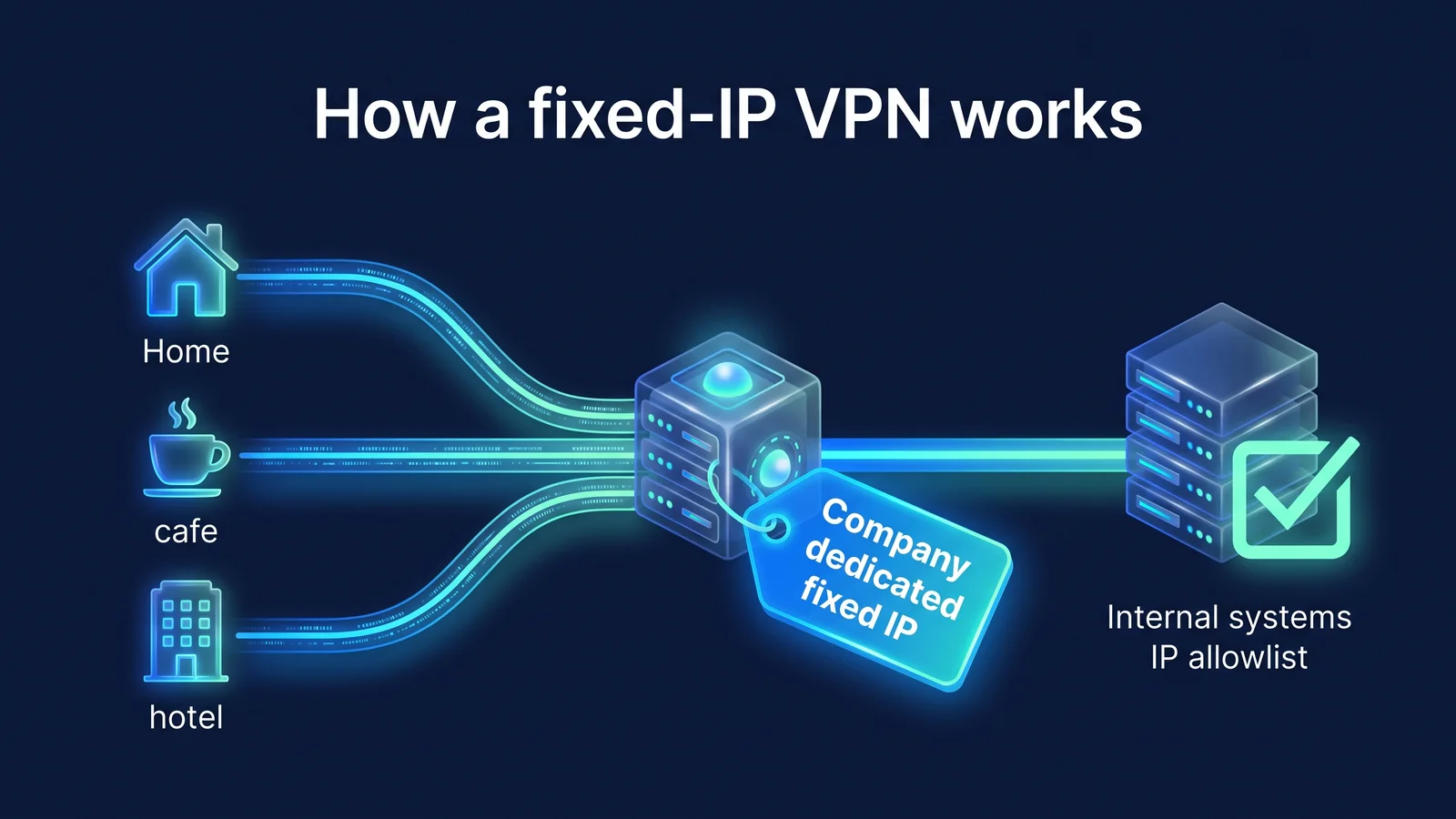
Corporate static IP VPN is a method of collecting members' Internet traffic to a company-dedicated VPN server and then sending it to an unchanging IP address assigned only to the company. From the perspective of an in-house system or business SaaS, it appears that members always access from the same address whether they are at home or on a business trip.
An IP allowlist is an access restriction method that only accepts connections from pre-registered source IPs. Even if your password is leaked, you have one more line of defense because you won't be able to reach the login screen if you're not registered. The problem is that the IPs for home internet and mobile data are different for each person and change frequently. If you register a home IP for each member, management increases endlessly, and if you open the scope widely for convenience, the meaning of the white list weakens. A static IP VPN solves this problem by “reducing the number of IPs to register to one.”
- Members who are working from home or on a business tripConnect to your company's dedicated servers with the StageVPN app
- WireGuard Encrypted Tunnel
- Company dedicated serverStart with company static IP
- HTTPS
- In-house system/SaaSCheck static IPs in whitelist and allow them
- VPN encryption
- Site HTTPS
- Areas that may be exposed
The space between your device and our dedicated server is protected by a WireGuard encrypted tunnel. The level of protection between the dedicated server and the target system is determined by the encryption provided by the system, such as HTTPS. Dedicated IPs are assigned only to your company, so even if you whitelist them, you can avoid worrying about users from other organizations using the same IP. The structure of WireGuard is Understanding WireGuard easilyThis was covered in detail.
| system type | Where to register the whitelist | Why you need a static IP |
|---|---|---|
| SaaS Administrator Console for Business | Security settings in your SaaS, or conditional access (location conditions based on IP ranges) from your identity provider. | Because if the administrator account is hijacked, the damage is great. |
| Cloud server/database | Inbound rules of security group/firewall (source IP) | To avoid opening remote access ports and DB ports to the entire Internet |
| In-house groupware, ERP, development server | Access settings for company firewall or web server | To allow access outside the office but narrow the scope |
| Customer/Partner System | Whitelist managed by the other company | When the other party requests connection IP registration as a condition of the contract |
Please know Static IP VPN is a method of proving “where the connection is coming from” to a system that is open to the Internet. The purpose is different from a site-to-site VPN that goes directly into the private network inside the office. Since static IP alone cannot provide the effect of restricting access to services without a whitelist function, first check whether each system you want to protect has a whitelist function.
In what order are the 7 stages of introduction carried out?
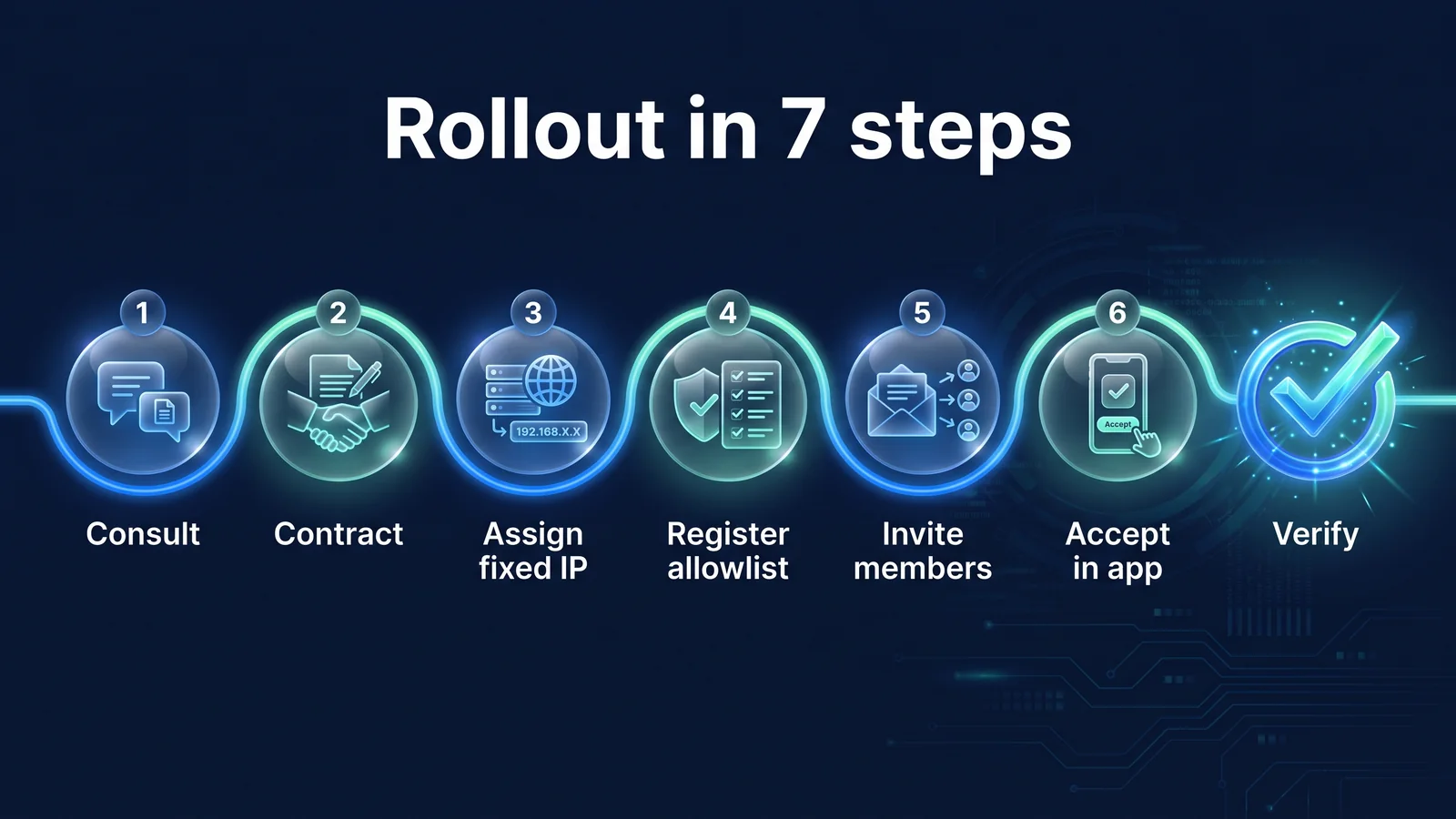
Introduction is a 7-step process from consultation to connection confirmation, and if whitelist registration (step 4) is completed before member invitation (step 5), you can use the work system right from the first connection. Steps 1 and 2 are handled by management and IT staff, stage 3 is handled by StageVPN, steps 4 and 5 are handled by IT staff, and steps 6 and 7 are handled by members and IT staff.
- Step 1Introduction consultation
Share the expected number of people, devices to be used, working area and country of business, work systems requiring dedicated IP, and desired introduction time. StageVPN Business PageApply here.
- Step 2enterprise agreement
The price, contract period, number of seats, number of dedicated IPs, and available countries are determined by the Enterprise Agreement. Proof such as invoice and tax invoice will be issued.
- Step 3Dedicated IP allocation
A dedicated company server and static IP are assigned. The dedicated IP is assigned for the company's use during the contract period, and the rights to the IP address are not transferred to the company.
- Step 4Whitelist registration
The system administrator registers the assigned static IP to the allow list for each system and decides whether to place it together with the existing office IP.
- Step 5Invite members
An administrator invites members using their email or phone number from the corporate console. The invitation has an acceptance deadline.
- Step 6Accept from app
Members log in with the email and phone number they were invited to, check the invitation in their verified account, read the information that the company can see, and then accept it.
- Step 7Check connection
After connecting to the company server, check whether the external IP appears to be the company's static IP and is actually connected to the target system.
| step | person who mainly does it | preparations or results |
|---|---|---|
| 1 consultation | Executive/IT staff | Personnel, devices, work area, target system list, desired timing |
| 2 contract | management | Corporate contracts, invoices, tax invoices |
| 3 Dedicated IP allocation | StageVPN | Company dedicated server and static IP address |
| 4 Register whitelist | IT personnel, system-specific personnel | List of registered systems and personnel documents |
| 5 Invite members | IT representative (administrator) | Invitation list in the corporate console |
| 6 Accept in app | member | Account belonging to the company |
| 7 Check connection | Members/IT staff | External IP check result, target system connection result |
An account can belong to only one company, and if seats are full, new members will not be able to accept invitations. If you plan to increase the number of people, it is recommended to leave room for the number of seats during the consultation stage.
What IT Staff Should Do
IT staff is responsible for four things: selecting an approach, whitelisting, inviting members, and verifying connectivity. If you proceed in this order, members will be able to use the work system right from the first connection.
Decide on your approach
StageVPN Business determines on a company-by-company basis which servers members can connect to in one of three ways: It is common for teams that use only a whitelist system to select “Dedicated IP only,” and for teams that use both a whitelist system and general web use, they typically select “Dedicated IP and public server.”
| approach | servers you can connect to | When a dedicated server is not available | a suitable team |
|---|---|---|---|
| Dedicated IP only (connected only to company fixed IP) | Company dedicated servers only | Display instructions without connecting to a public server instead | Teams whose work traffic must go out to whitelisted IPs |
| Dedicated IP and public server (company fixed IP + general server) | Use the company's dedicated server first, and also select a public server in a country permitted by the company. | You can select a public server to connect to (connection to the whitelist system is not possible) | A team working together on the whitelist system and general work at the business trip. |
| Public servers only (normal servers, team VPN) | StageVPN public servers | Not applicable (no static IP) | Teams that aim to protect public Wi-Fi and manage accounts collectively rather than whitelisting |
In the “Dedicated IP Only” method, the connection itself is blocked so that even if a problem occurs with the dedicated server, the connection does not go out to a general IP. Conversely, while connected to a public server, the external IP is not a company static IP and therefore cannot access the whitelist system. Available countries are determined by the Enterprise Agreement, and you cannot connect to servers in countries not permitted by company policy.
Register whitelist
- Document the list of systems for which you want to register static IPs and the person in charge for each system. This document will be rewritten when the dedicated IP changes or the contract ends.
- Check the location of the whitelist feature on your system (see Table 1). Remove non-functional systems from the list and review other access controls.
- Register the assigned static IP. Decide whether to keep the existing office IP together or leave only the dedicated IP.
- Connect to the dedicated server with a test account and check whether you can connect in both directions, and whether it is blocked by turning off the VPN.
Invite members and confirm connection
- Invite members using their email or phone number from the corporate console. Since there is a deadline for accepting invitations, invitations are also notified via company messenger.
- View invitation and membership status in the console and redirect members who have not yet accepted.
- Check whether the accepted member is currently connected and the time of the last connection.
- When members connect, check that the external IP appears to be the company's static IP and is logged into the target system.
- If there are multiple dedicated IPs, set a default IP and separately assign static IPs to be used for necessary members.
tip App installation instructions iPhone·iPadand Android Sending the page link along with the invitation will reduce inquiries. The first thing to do when you can't connect is Customer Support Please refer to the page.
Management to confirm
What management needs to check are three things: what is stipulated in the contract, the scope of information that managers can see, and the obligation to inform members. all three Terms of Use Article 24 and privacy policy The basis is Article 6.
Items stipulated in the contract
Enterprise VPN is provided pursuant to a separate enterprise contract (contract, order, quotation) between the company and corporate customers without a public price list, and any matters stipulated differently from the terms and conditions in the enterprise contract will take precedence (as of September 2026).
| item | Where to decide | What to check |
|---|---|---|
| Fees, Billing Cycle, Payment Due Date | enterprise agreement | Payment must be made by the due date written on the invoice, and if there is a delay, use may be restricted after requesting the due date. |
| Contract period, early termination and settlement | enterprise agreement | of personal subscription Payment/refund policyIn matters determined differently from the above, the enterprise contract takes precedence. |
| number of seats | enterprise agreement | If seats are full, new members cannot be accepted, so increase plans are reflected. |
| Number of dedicated IPs | enterprise agreement | The required number is determined upon consultation based on the target system and work area. |
| Available countries | enterprise agreement | Include business trip countries, as you won't be able to connect to servers in non-allowed countries. |
| proof | Terms of Use Article 24 | Issuance of invoices and tax invoices in accordance with relevant laws and regulations |
Scope of information that administrators can view
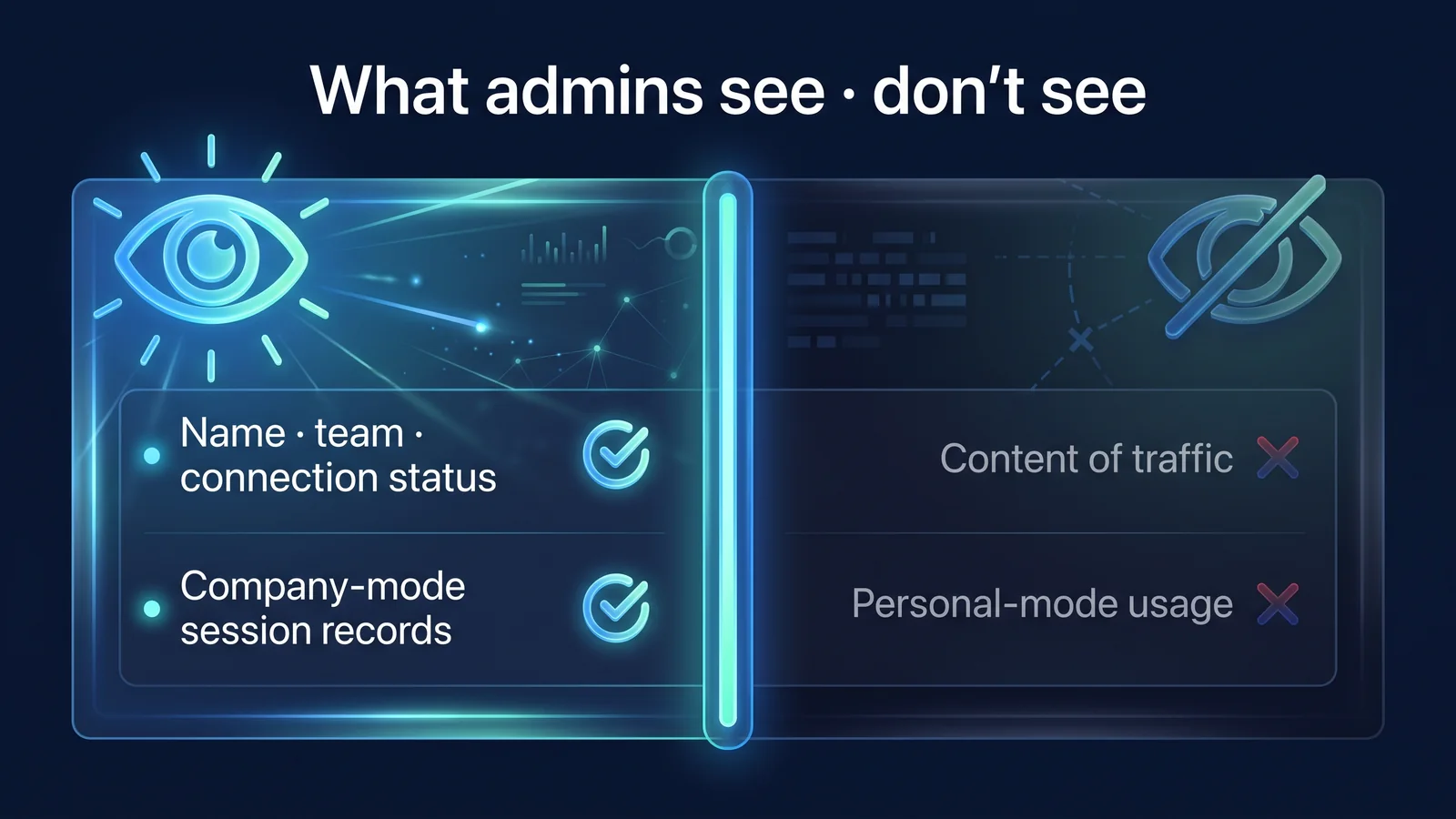
The information seen by corporate administrators is limited to the scope necessary for member management and usage status verification, and communication content, connection IP, and personal qualification usage information are not provided. This scope is written in Article 6 of the Privacy Policy, and the same information is also provided on the app screen when a member accepts an invitation.
Information that administrators can see
- Member email/name (display name)/department
- Invitation/affiliation status
- Current connection status and last connection time
- Usage details for each session connected as a company: connection/end time, usage time, amount of data, name/country of connected server, company-specific IP used
- Total of the above usage details
Information that administrators cannot see
- Communication contents such as visited sites, messages and files exchanged, etc.
- The IP address from which the member accessed the VPN (connection IP)
- Information used as an individual (individual subscription) rather than as a company
- Access records (destination IP, port, etc.) kept by StageVPN in accordance with laws and regulations
The access records that StageVPN itself keeps in accordance with the law are separate from the administrator console, and their scope and provision procedures are Access record storage noticeand Reason for disclosing 93-day storage of access recordsThis is explained in .
Duty to inform members
When a company registers personal information, such as a member's email address, with StageVPN, it must have a lawful basis for processing such as notification and consent to the member in accordance with relevant laws and regulations (Article 24, Paragraph 5 of the Terms of Use). Additionally, while you are a member, all VPN connections for that account are treated as corporate, and connections made during non-business hours are also included in session records, so it is a good idea to note this in your company usage guidelines. The general principles of processing personal information of executives and employees are: Personal Information Protection Committee Please refer to the instructions.
| information | period | reason |
|---|---|---|
| Usage details by session (administrator inquiry) | Viewable up to 93 days after session ends | Article 6 of Personal Information Processing Policy |
| Corporate Member Information | Until member deletion or termination of enterprise agreement | Article 3 of Personal Information Processing Policy |
| Enterprise management console audit records (invitations, deletions, settings changes, etc.) | Automatically deleted 3 years from creation date | Article 3 of the Personal Information Processing Policy, Article 24, Paragraph 7 of the Terms of Use |
| Corporate customer contract/billing information | 5 years after contract ends | Electronic Commerce Act, Framework Act on National Taxes, etc. |
What members do
There are three things members have to do: install the app, accept the invitation, and connect to the company's servers. Invitations cannot be accepted on behalf of an administrator; members must accept them in the app.
- Install the StageVPN app (iPhone·iPad, Android).
- Log in with the email or phone number you were invited to and complete verification. Accounts signed up with a different email address will not see the invitation.
- Confirm the invitation in the app, read the company-visible information guide, and accept within the acceptance deadline.
- Connect to your company's dedicated server (or a server permitted by your company).
- Follow the guidance of the IT manager to check external IP and business system access and notify the result.
There are four things to keep in mind after accepting: First, while affiliated, this account's VPN connections are treated as corporate, and session records (time, usage time, data volume, server, and dedicated IP) are provided to the company. Second, even if you have a personal subscription, it is not automatically canceled and payment continues, so if you want to end your personal subscription, Cancel separately from the place where payment was madeYou must do it. Third, you can leave the corporate VPN at any time from the account screen, and after leaving, you can continue using your personal subscription. Fourth, an account can belong to only one company.
Check before business trip When you connect to a dedicated server, the outgoing address is the company's dedicated IP, no matter which country you connect from. However, there are countries that restrict the use of VPN, so before leaving the country Ministry of Foreign Affairs Safe Travel Overseas Check instructions and local regulations. Rules for airport and hotel Wi-Fi Public Wi-Fi Safety Rulesclass Overseas Travel VPN GuideI organized it in .
Operating rules: What must be observed after introduction?
The core of our operation is three-fold: immediately excluding quitters, keeping whitelists up-to-date, and protecting dedicated IP reputation. Since static IP only verifies “where it is coming from,” it must be operated in conjunction with account, device, and permission controls to function properly.
Processing of those who quit their jobs and move to different departments
Once a resignation or role change is confirmed, the member must be immediately excluded from the corporate console. As soon as the member is excluded, the company's VPN connection is disconnected. Article 24, Paragraph 4 of the Terms of Use stipulates that it is the corporate customer's obligation to delete members who have lost their authority without delay.
- Change confirmedThe human resources manager shares the resignation and transfer schedule with the manager.
- Exclude or suspend membersProcessed from corporate console, corporate entitlement connection is immediately disconnected
- Business Account RecoverySeparately organize SaaS and in-house system accounts and permissions
- Check audit recordsCheck processing date and operator through console records
| situation | Enterprise Console Actions | things to do together |
|---|---|---|
| quit | Exclude members (require new invitation to rejoin) | Deactivate business system account, replace public password |
| Leave of absence/long-term absence | Resume when a member returns after suspension | Record of return schedule |
| department transfer | Change display information (department) | Adjust system-specific permissions to new roles |
| Lost device | member suspension | Change account password, terminate login session on target system |
| Dedicated IP change notification | Check new IP | Register new IP in all whitelist, delete existing IP |
| Enterprise Agreement Termination | Dedicated IP Retrieval | Delete that IP from the whitelist |
If there are unavoidable reasons such as server relocation, response to failure, or circumstances of the hosting provider, the dedicated IP may be changed after prior notice (without delay in case of emergency), and will be collected at the end of the contract (Article 24, Paragraph 6 of the Terms of Use). If you leave the recovered IP in the whitelist, it will be assigned to another user and then unnecessarily allowed, so schedule deletion before the end of the contract.
Operations Checklist
- Manage the list of systems with registered static IPs and the person in charge of each system as documents.
- Keep your billing contact information and who will receive notifications of dedicated IP changes up to date in your corporate console.
- Every month, the member list is compared with the personnel list to organize those who have left or moved to the company.
- Check invitations, exclusions, and settings changes with audit records from the enterprise console.
- Maintain multifactor authentication (MFA) on all work accounts, even if you have a whitelist. Even if a connection comes from an allowed IP, a static IP cannot block it if it comes from a hijacked account or infected device.
- We do not share or resell dedicated IP or corporate VPN access rights to individuals or organizations outside the company.
- We prohibit uses that could damage your IP reputation, such as spamming or bulk automated collection, which could result in you being blacklisted.
- Confirm that it does not exceed the number of people, country, and purpose specified in the contract.
- We advise you to check local laws and conditions of use before traveling abroad.
caution If your Dedicated IP is blacklisted for violations, StageVPN will notify the company and, if necessary, suspend or replace your Dedicated IP. The criteria for prohibited acts are Service Use Policy Please reflect Article 7 (Standards for use of dedicated corporate IP) in your company guidelines. What risks does a VPN reduce and what risks does it not? What VPNs Prevent and Can't PreventI organized it in .
Checklist of pre-implementation questions
If you can answer all of the questions below, you can confirm the configuration right away during the consultation stage. For items that are difficult to answer, you can ask the same questions during the consultation.
- What systems do you want to protect with static IPs, and does each system have an IP whitelist feature?
- Do you only use the whitelist system, or do you also use the general web? (Approach “Dedicated IP only” or “Dedicated IP and public server”)
- How many people are expected to use it, and how much can it increase within a year? (number of seats)
- What devices do members use? (iPhone·iPad, Android)
- Where do you work and what are your main travel countries? (Available countries, number of dedicated IPs)
- Who will be the administrator who will operate the corporate console and who will receive notification of dedicated IP changes?
- How will you inform members of the processing of their personal information and the scope of information viewed by the administrator?
- Is there a procedure for the HR manager to notify the manager when leaving or moving to the company?
- Are you operating multi-factor authentication, device updates, and least privilege along with whitelisting?
- When is the desired introduction time, and can the whitelist registration be completed before then?
Consultation StageVPN Business PageYou can apply here. Consultation will be faster if you inform us of the expected number of people, devices to be used, work area and business trip country, work system requiring a dedicated IP, and desired introduction time.
Frequently Asked Questions
What are the corporate rates?
Corporate rates are determined through a corporate contract after consultation depending on the number of people and composition without a public price list (as of September 2026). Fees, billing cycle, payment deadline, contract period, early termination and settlement are determined in the enterprise contract, and supporting documents such as invoices and tax invoices are issued. Detailed standards are Payment/refund policy Article 9 and Terms of Use It is in Article 24.
How many static IPs can I receive?
The number of dedicated IPs, along with the number of seats and countries of use, is set in the Enterprise Agreement. If multiple IPs are used, a default IP is specified, and the administrator can specify a static IP to use for each member. It is recommended that the required number be determined at the consultation stage based on the target system and work location.
Can administrators see which sites employees visit?
Can't see it. Administrators can only view company qualification session time, usage time, data amount, server name/country, and dedicated IP used. Communication content such as visited sites and connection IP are not provided. StageVPN does not log your communications.
What happens if an employee who already has a personal subscription accepts my invitation?
Personal subscriptions will not be automatically canceled and payments will continue as is. While you are part of the company, your VPN connection will be treated as corporate, and once you leave the corporate VPN, you will continue to have access to the remaining personal subscription. Cancellation of an individual subscription must be done separately at the place where payment was made.
What happens to the static IP when the contract ends?
When the contract ends, the dedicated IP will be withdrawn and the company will have no right to continue using it. If a reclaimed IP remains in the whitelist, it becomes an unnecessary whitelist, so schedule to clear the IP from the whitelist on all systems before termination.
Should I choose between static IP VPN and ZTNA?
Unless your SaaS/cloud already has a whitelist and your team is large, a static IP VPN is the simplest to deploy. ZTNA (Zero Trust Network Access) is a method of checking the user, device, and situation for each request and allowing access on an app-by-app basis. It is suitable for organizations that have many apps and require detailed permission control. The two methods are not exclusive, so it is common to use a combination of protecting SaaS with static IP whitelists and MFA, and protecting in-house dedicated systems with separate means.
reference material
- Personal Information Protection Act — Articles 17 and 18 (Provision of personal information to third parties) and grounds for processing personal information of executives and employees (National Legislation Information Center)
- Personal Information Protection Committee — Laws and guidance on processing and notification of personal information of executives and employees (Personal Information Protection Committee)
- Enforcement Decree of the Communications Secrets Protection Act — Article 41, Paragraph 2 (Minimum legal storage period of access records) (National Legislation Information Center)
- NIST SP 800-46 Rev. 2, Guide to Enterprise Telework, Remote Access, and BYOD Security — General principles of remote work/remote access security (US National Institute of Standards and Technology)
- NIST SP 800-207, Zero Trust Architecture — Definition of Zero Trust and Limits of Trust Based on Network Location (National Institute of Standards and Technology)
- Control traffic to your AWS resources using security groups — How to set up inbound rules based on source IP (Amazon Web Services)
- Conditional access policy: Enable network signaling — How to use IP ranges as location conditions (Microsoft Learn)